


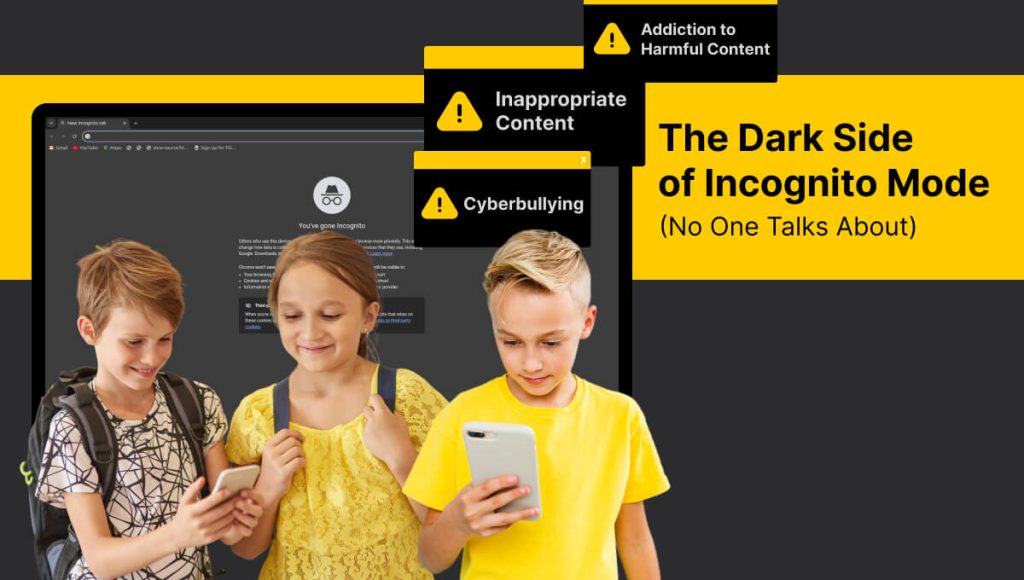
Understand the Hidden Dangers & Learn How to Protect Your Child Online
What Is Incognito Mode?
Incognito Mode (or private browsing) is a feature available in almost every major browser — including Google Chrome, Firefox, Safari, Edge, and others. When enabled, it allows users to browse the internet without saving:
- Search history
- Website data
- Cookies
- Form inputs
- Login sessions
It’s often used by adults for privacy — but in the hands of a child or teen, it becomes a tool to hide behavior.
Incognito mode does not make browsing completely anonymous — internet providers, schools, and parental control tools may still see activity in some cases.
Dangers and risks of Incognito Mode for kids
1. No Browsing History = No Parental Oversight
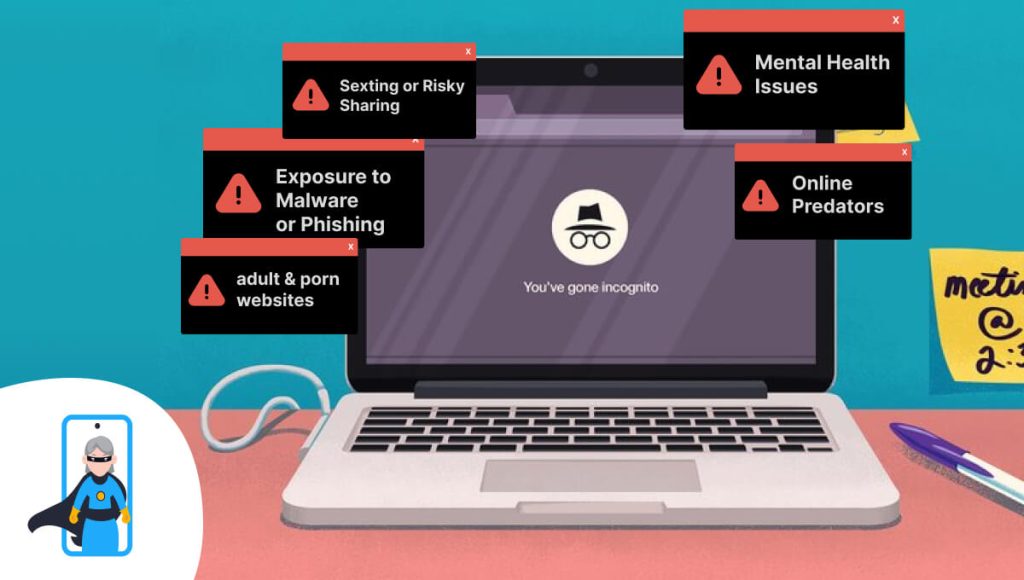
If your child uses incognito mode, you lose the ability to monitor your child’s online activity because it doesn’t save browsing history – even on a shared device. As a result, children may engage in risky online activity without proper guidance.
2. Mental Health & Emotional Impact
- Viewing harmful or graphic content in secret can cause anxiety, fear, or confusion.
- Kids may feel guilty, isolated, or become secretive about device use.
- Repeated exposure to negative content (without guidance) increases risk of depression or behavioral changes.
3. Exposure to Inappropriate Content
Private modes disable history and filtering, meaning kids can view:
- Adult content & material
- Violent or hateful content
- Illegal downloads or unsafe websites (like pornhub)
as it doesn’t filter out such content like parental controls do.
4. False Sense of Safety
Many teens think Incognito or private browsers keep them safe. In reality:
- They’re still being tracked by internet service providers, websites, and fingerprinting techniques.
- They are more vulnerable to scams, phishing, or dangerous content since filters are bypassed.
5. Identity Theft
Using Incognito Mode doesn’t protect kids from phishing scams or identity theft attempts, putting their personal information at risk.
How to Know If Your Child Uses Incognito Mode
While browsing history won’t show incognito activity, here are some warning signs:
- Empty history when you expected content
- Sudden drop in visible browsing activity
- Tabs closing quickly when you walk by
- Curiosity around private browsing
- Device has shortcuts or instructions saved for incognito use
Can You Disable Incognito Mode?
Yes, on some platforms you can block or limit incognito mode. Here’s how:
Android / Chromebook (using Google Family Link):
- Install Google Family Link
- Create an account for your child
- Sign them into their device
- In Family Link:
- Tap Manage→ Filters on Google Chrome
- select web browsing settings
Note: With Google Family Link account, you can use the app to manage the websites children can visit on Chrome, limit their ability to grant permissions to websites, and block or allow specific sites. Children signed in to their Google Account can’t use incognito mode.
Why KidsNanny Is the Best Alternative to Google Family Link
While Google Family Link provides some helpful basic controls for managing your child’s device — especially on Android — it’s not designed to cover everything. Browser-only filters, limited app management, and no incognito blocking on many devices leave significant gaps.
That’s why many parents are choosing KidsNanny as a more complete and reliable parental control solution.
Here’s what you get with KidsNanny:
1. Block Incognito Mode Completely
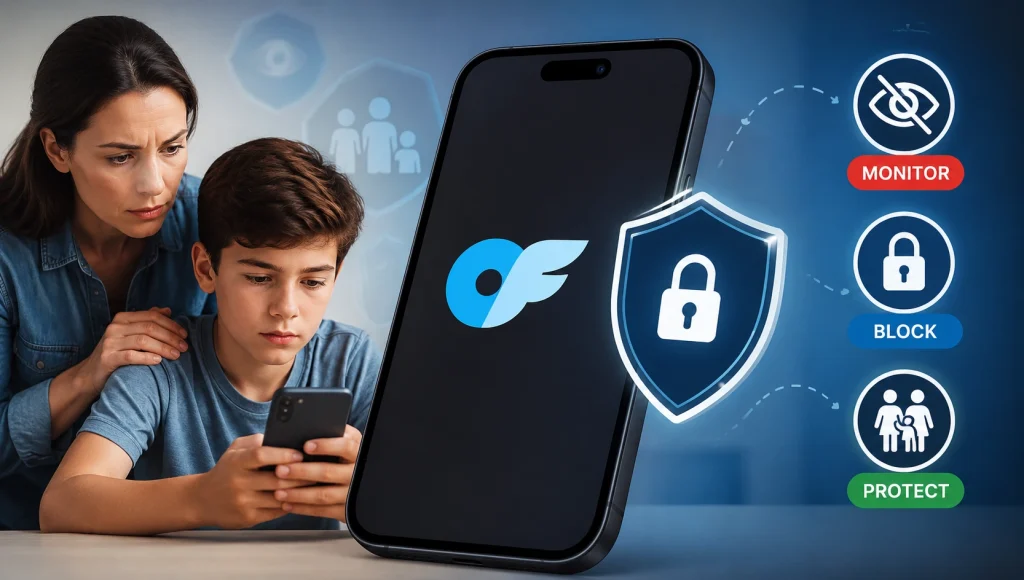
KidsNanny enforces a Safe Browser that disables all incognito or private browsing. This means your child’s online activity is always visible — even if they try to hide it.
2. Block Browsers & Risky Apps
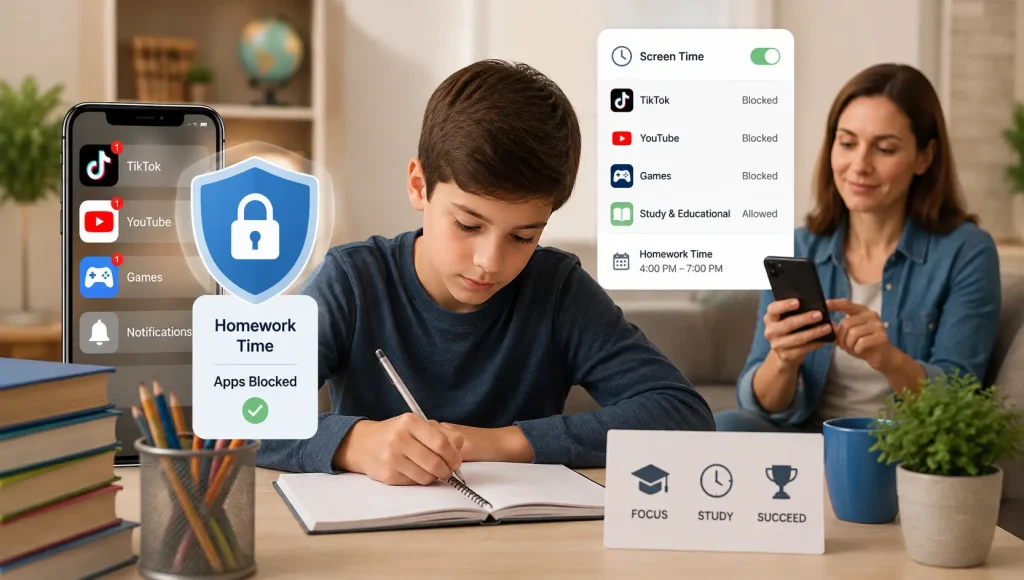
Block any app or browser that could pose a risk — including Chrome, YouTube, Snapchat, Telegram, and more. KidsNanny protects across all platforms.
3. Real-Time Activity Alerts
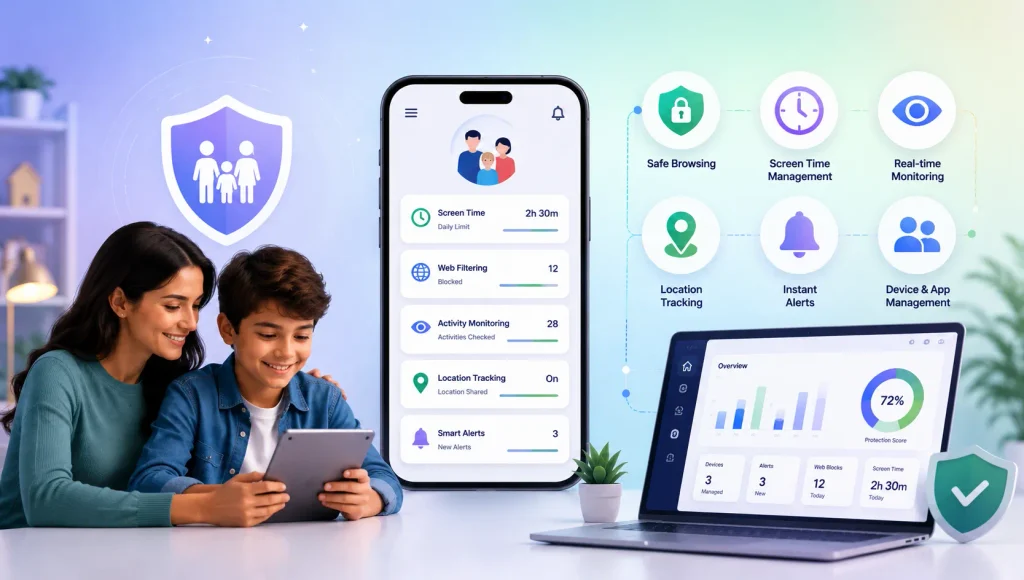
Get instant notifications when your child attempts to open blocked websites, use restricted apps, or searches for harmful content. Stay informed without constantly checking the app.
4. Filter Harmful Websites Automatically
KidsNanny uses AI-powered web filtering to block adult, violent, and inappropriate websites across all browsers, not just Chrome. You can also create a custom allow/block list for specific websites.
5. Track Screen Time & App Usage
Easily view how much time your child spends on each app or browser. Set daily screen time limits by app category (social media, games, browsers) to encourage healthy habits.
6. Screen Scanner: Live Snapshots Every 5 Minutes
See what your child is doing in real-time. KidsNanny captures a screenshot every 5 minutes, giving you a visual log of their activity — even across different apps.
With KidsNanny, you’re not just blocking websites — you’re creating a safer digital environment, guiding healthy usage, and building trust with smarter tools.
Talk to Your Child
- Explain why you monitor — it’s not about spying, but protecting them
- Discuss what’s appropriate to search or visit
- Build trust by involving them in setting digital boundaries
Final Thoughts: Privacy or Protection?
Incognito Mode is not evil — but in the wrong hands, it’s a dangerous gap in your parental visibility.
By default, it’s designed for privacy. But for kids, it often means hiding, avoiding, or escaping parental controls.
Take action now to block or monitor incognito use — and pair that with open conversations, app-based monitoring, and healthy screen time habits.