
YouTube Control
Block Channels & Monitor Viewing Habits
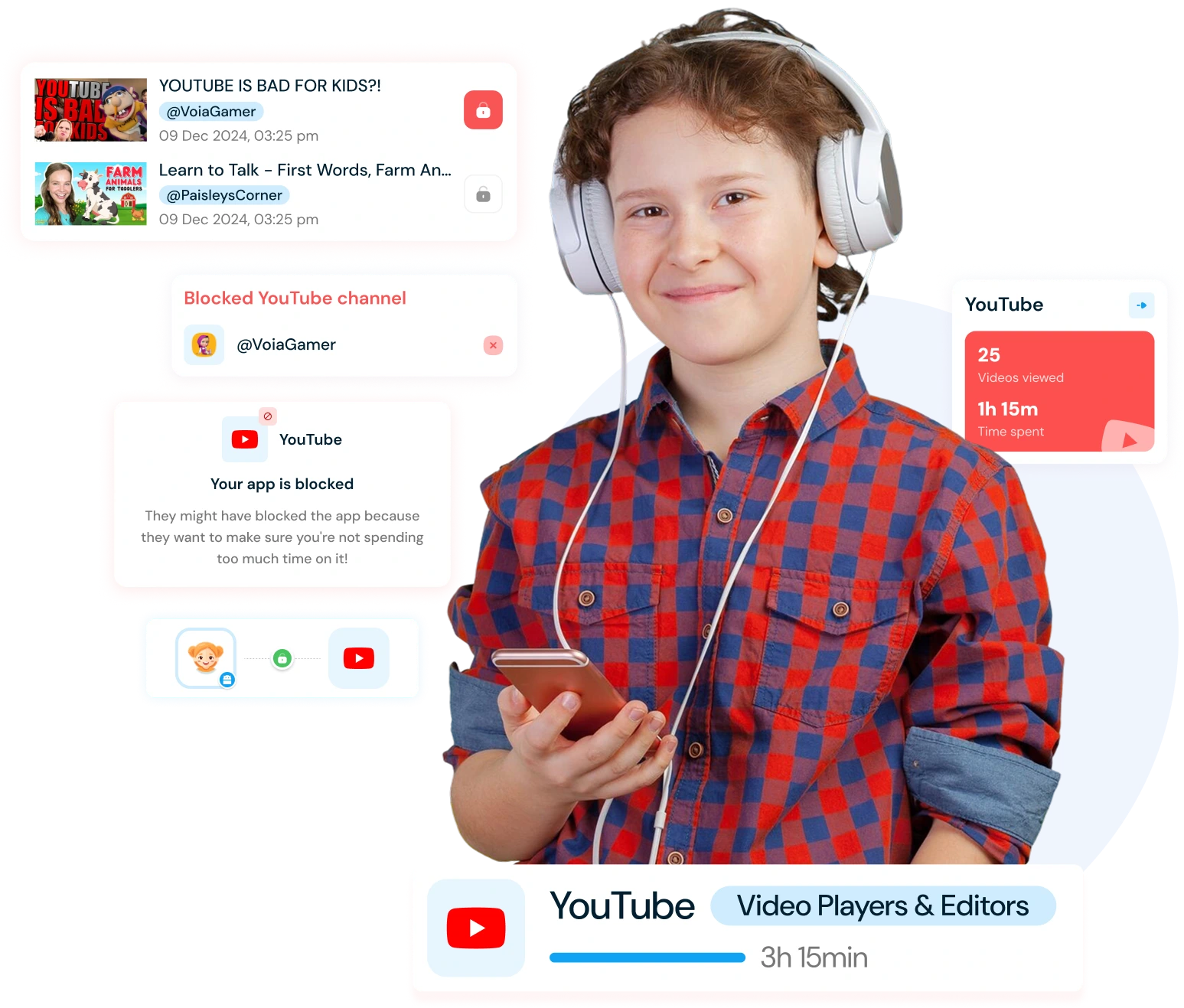
Manage your child’s YouTube activity across YouTube, YouTube Kids, and browser. Block inappropriate channels, allow only safe content, and track viewing history to ensure age-appropriate watching.
Track YouTube History & Block Videos
Monitor your child’s YouTube activity and prevent access to inappropriate content across all platforms.
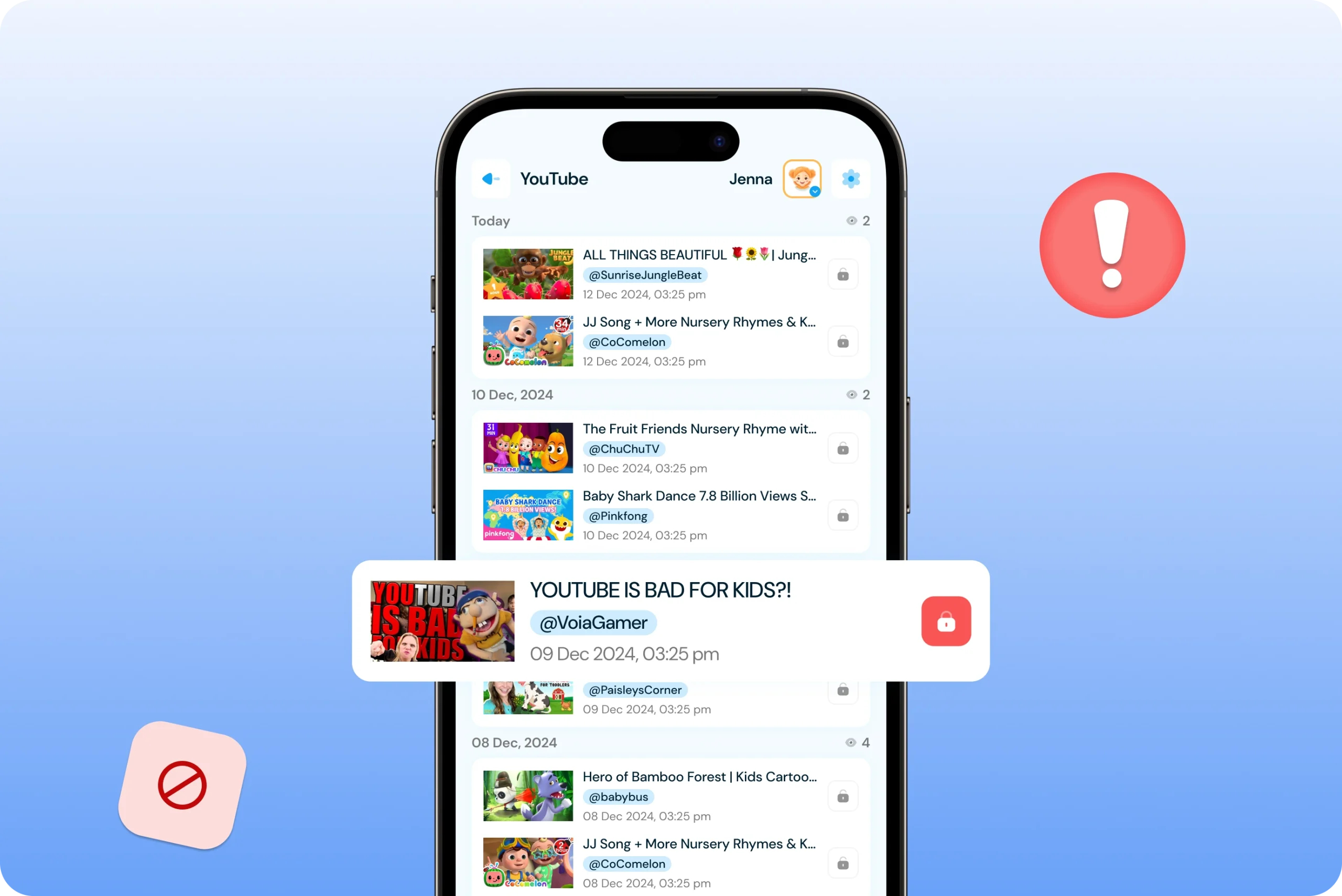
✓ View complete YouTube watch history seeing all videos your child has watched on YouTube, YouTube Kids, and YouTube videos accessed through the browser.
✓ See video titles, links, and details accessing comprehensive information about each watched video including titles and direct links for parent review.
✓ Track number of videos watched monitoring how many YouTube videos your child consumes to manage overall screen time and viewing habits.
✓ Identify most-visited videos and channels discovering which content captures your child’s attention most frequently to understand their interests and concerns.
✓ Easy access from Insights section navigating to the Insights section on your parent device, scrolling down to find YouTube history with visited video links.
Block & Allow Specific Channels
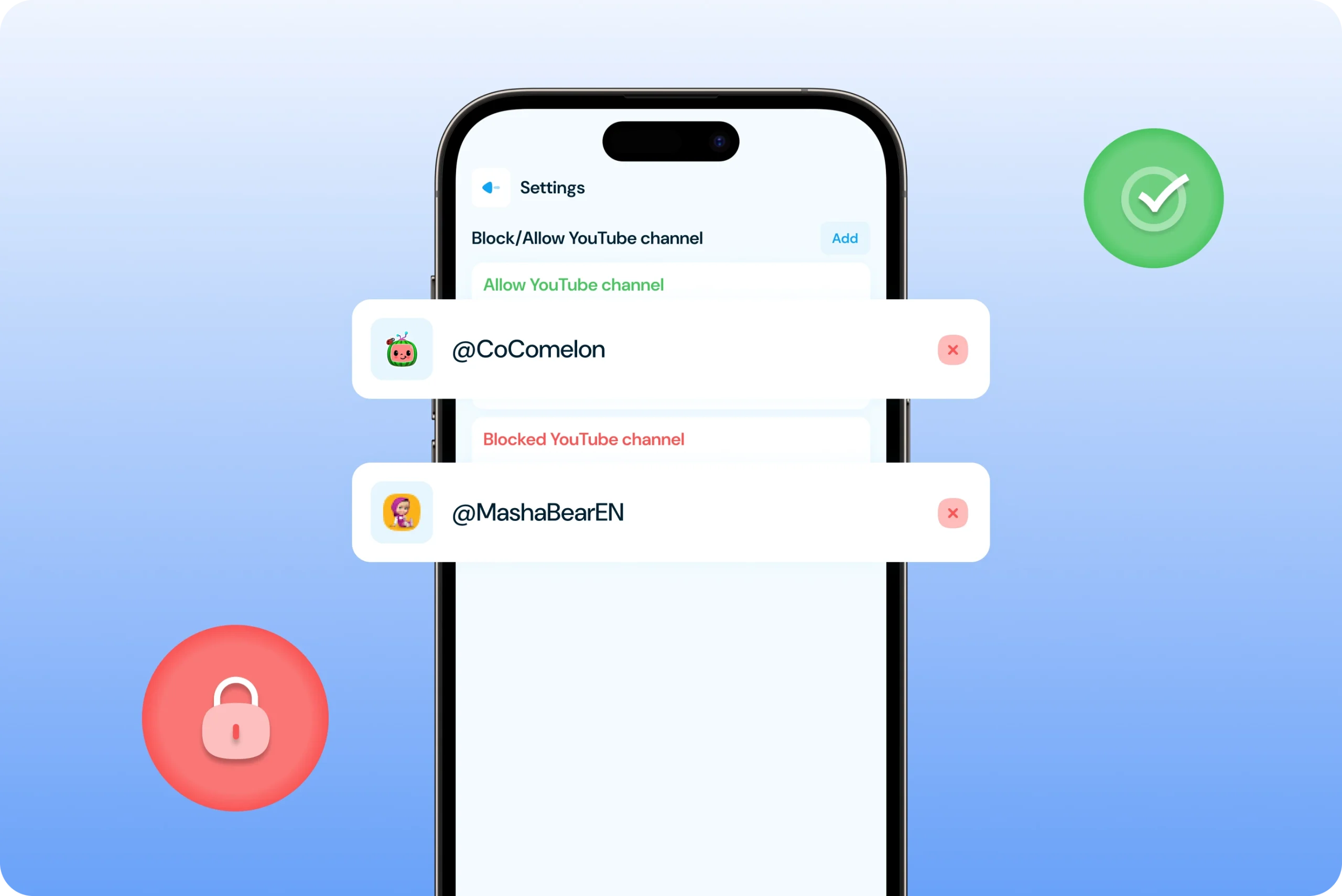
Control which YouTube channels your child can access—block inappropriate channels or allow only safe ones.
✓ Block inappropriate channels instantly preventing your child from watching any videos from blocked channels on YouTube, YouTube Kids, or through the browser.
✓ Allow only safe, educational channels permitting your child to watch videos exclusively from channels you approve—all other channels are automatically blocked.
✓ Perfect for younger children creating a controlled YouTube experience where kids can only access parent-approved content like educational videos or age-appropriate entertainment.
✓ Protect from harmful content creators blocking channels that promote dangerous challenges, inappropriate behavior, age-unsuitable content, or misleading information.
How to Use YouTube Parental Control ?
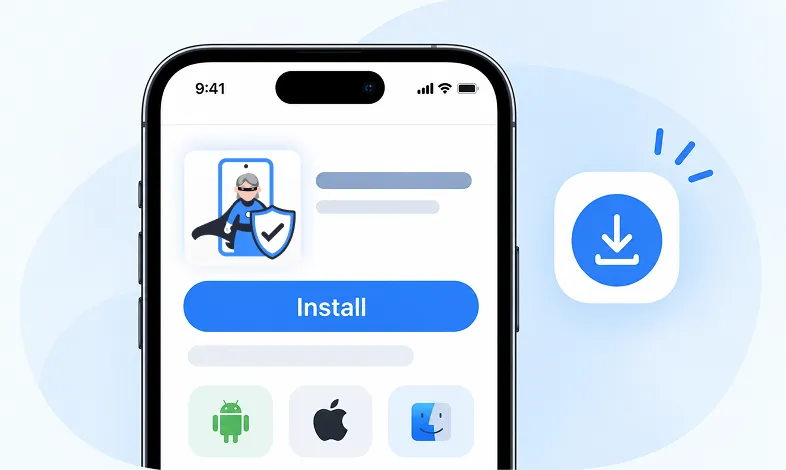
Step 1 Install KidsNanny
Download KidsNanny App from Google Play Store or App Store on the parent’s phone
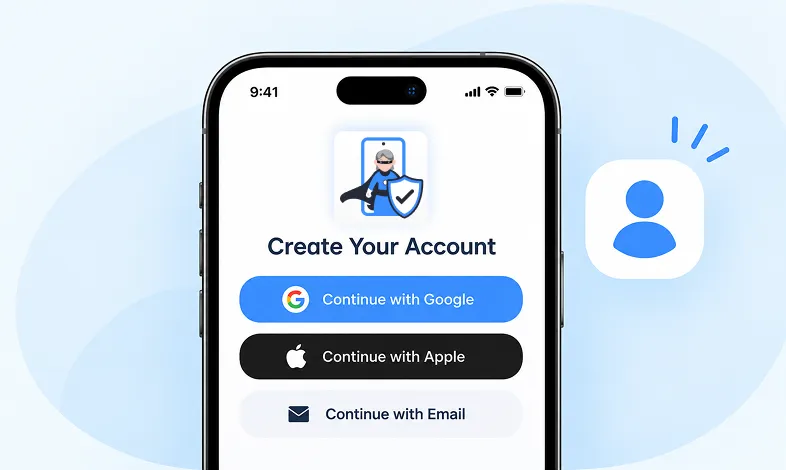
Step 2 Create your Account
Create account for KidsNanny or login with an Google, Apple and Email id.
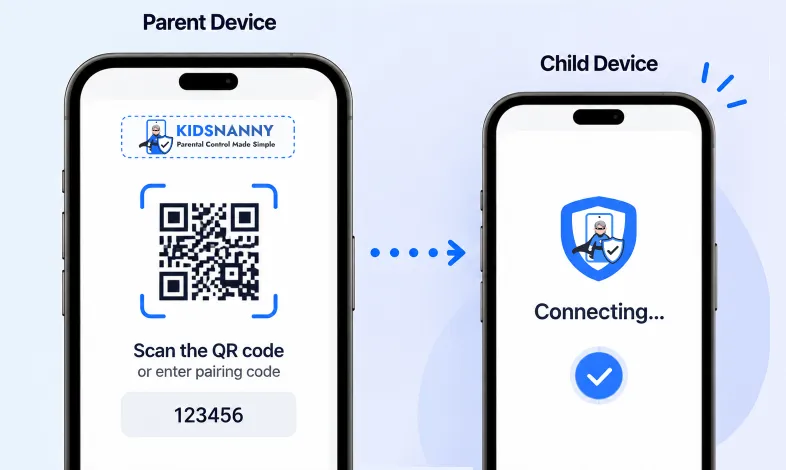
Step 3 Connect Kid's Device
Install KidsNanny App on your kid’s device. Then, enter the paring code to connect device.
How YouTube Control Works
To Block a YouTube Channel:
- Log in as a parent on your KidsNanny dashboard.
- Scroll down to the YouTube App Control section.
- Click on Details to view YouTube watch list.
- Click on Settings icon.
- Add the channel name you want to block.
- Click the Block button to restrict access.
To Allow Specific Channels Only:
- Log in as a parent on your KidsNanny dashboard.
- Scroll down to the YouTube App Control section.
- Click on Details to access YouTube settings.
- Click on Settings icon.
- Turn on the “Only allow specific channels” switch.
- Enter the channel names you want to allow.
More Parental Control Features
Real time Alerts
Receive instant alerts for harmful content detection, location activity, and child safety events.
View AlertsLocation Tracker
Real-time GPS tracking to know where your child is at all times with geofencing alerts.
Enable Location Tracker

Camera Shield
Control camera access and monitor photo activities to ensure your child's privacy and safety.
Enable Camera Shield
Screen Scanner
Capture screenshots of your child's device activity to review what they're viewing.
Enable Screen Scanner

WhatsApp Shield
Monitor WhatsApp messages and protect your child from inappropriate conversations and strangers.
Enable WhatsApp Tracker

YouTube Control
Monitor watch history, block inappropriate channels, and set viewing limits on YouTube.
Try YouTube Control
Content Filter
Block harmful websites and inappropriate content across all apps and browsers.
Enable Content Filter
Screen Time Limit
Set daily usage limits and schedule screen-free times for healthier device habits.
Set Screen Time
App Blocking
Block or restrict access to specific apps and games based on age-appropriateness.
Block Harmful Apps
Instant Lock Down
Remotely lock your child's device instantly when needed for immediate control.
Enable Instant Lock Down

Web History & Blocking
Track browsing history and block dangerous or inappropriate websites in real-time.
View Web History

Insights & Statistics
View detailed analytics and reports on your child's digital behavior and app usage patterns.
View Usage & Monitor
Task & Rewards
Create tasks and chores with reward systems to encourage positive behavior and responsibility.
Create TaskWhat parents say about
KidsNanny
Kim Parker
This app helps me track my kid’s location with geofencing and location tracking. I can monitor web history and block unsafe sites—definitely a must-have for parents!
Rik Matthews
KidsNanny helps monitor screen time, block apps, track web activity, and follow location with geofencing. It's user-friendly, though charts need slight improvement.
Ashley Brown
Our family finds KidsNanny an incredible asset. Its powerful features and intuitive interface make managing screen time easy. The check-in feature gives us peace of mind by tracking our child’s movements.
Michael Johnson
KidsNanny features an intuitive and user-friendly interface, making it easy for parents to navigate and access essential features. With simple setup and configuration, you can start monitoring your child's digital activities in minutes.
David Singh
This app is incredibly helpful in keeping track of my kid's whereabouts, thanks to features like geofencing and location tracking. Additionally, I can easily monitor their web history which has been super beneficial. Definitely a must-have for any parent.!!
Maria Hernández
The screen time management feature helps me set healthy limits for my child's device use. The app's check-in and live location features provide a safe environment. A must-download for every concerned parent.
Emily Smith
I like to have the opportunity to see anything happening on my kid's phone - when the phone was used, sites visited, web searches, videos watched! Really amazing!
Hiroshi Tanaka
The best parental control apps, which allow for a good level of control and flexibility,can help you monitor your children's activity across social media. And still giving your family the freedom to explore the digital world, give the benefits of added safety nets.
Jean Dupont
Excellent app to monitor Kids mobile usage. Have control on screen time usage and their effective usage of device for their development.. Caring parents should definitely try it.
Sarah Thompson
Thank you for this amazing product. It is very crucial for the security and privacy of us as children and also for parents. It has enhanced our child's protection by productive tracking system. The overall experience is great to have.
Kim Parker
This app helps me track my kid’s location with geofencing and location tracking. I can monitor web history and block unsafe sites—definitely a must-have for parents!
Rik Matthews
KidsNanny helps monitor screen time, block apps, track web activity, and follow location with geofencing. It's user-friendly, though charts need slight improvement.
Ashley Brown
Our family finds KidsNanny an incredible asset. Its powerful features and intuitive interface make managing screen time easy. The check-in feature gives us peace of mind by tracking our child’s movements.
Michael Johnson
KidsNanny features an intuitive and user-friendly interface, making it easy for parents to navigate and access essential features. With simple setup and configuration, you can start monitoring your child's digital activities in minutes.
David Singh
This app is incredibly helpful in keeping track of my kid's whereabouts, thanks to features like geofencing and location tracking. Additionally, I can easily monitor their web history which has been super beneficial. Definitely a must-have for any parent.!!
Maria Hernández
The screen time management feature helps me set healthy limits for my child's device use. The app's check-in and live location features provide a safe environment. A must-download for every concerned parent.
Emily Smith
I like to have the opportunity to see anything happening on my kid's phone - when the phone was used, sites visited, web searches, videos watched! Really amazing!
Hiroshi Tanaka
The best parental control apps, which allow for a good level of control and flexibility,can help you monitor your children's activity across social media. And still giving your family the freedom to explore the digital world, give the benefits of added safety nets.
Jean Dupont
Excellent app to monitor Kids mobile usage. Have control on screen time usage and their effective usage of device for their development.. Caring parents should definitely try it.
Sarah Thompson
Thank you for this amazing product. It is very crucial for the security and privacy of us as children and also for parents. It has enhanced our child's protection by productive tracking system. The overall experience is great to have.
YouTube Control FAQs
Where can I view YouTube history?
On the parent device, navigate to the Insights section, scroll down the page, and you will find a list of the most visited YouTube videos by your child, along with links to the visited videos.
How can I enable my YouTube history?
To enable YouTube history, you need to purchase a KidsNanny subscription.
How to block a YouTube channel?
- Log in as a parent.
- Scroll down to the YouTube App Control section.
- Click on Details.
- Navigate to Settings.
- Enter the channel name you want to block.
- Click the Block button.
- Ensure the “Only allow specific channels” switch is turned off.
How to allow a specific YouTube channel?
Log in as a parent.
Scroll down to the YouTube App Control section.
Click on Details.
Navigate to Settings.
Ensure the “Only allow specific channels” switch is turned on.
Enter the channel name you want to allow.
Click the Allow button.
Why is the YouTube channel not blocking?
- Check if the “Display over other apps” setting is enabled.
- Ensure the accessibility setting is enabled.
- Verify that the channel is not in the allowed list.
Does YouTube Control work on YouTube Kids?
Yes, YouTube Control works on both regular YouTube and YouTube Kids apps, as well as YouTube videos accessed through web browsers.
Can I block individual videos instead of channels?
YouTube Control focuses on channel-level blocking for more comprehensive protection. Blocking entire channels prevents access to all videos from that creator.