



Child Browsing History Tracker
See Your Child’s Browsing History & Online Activity
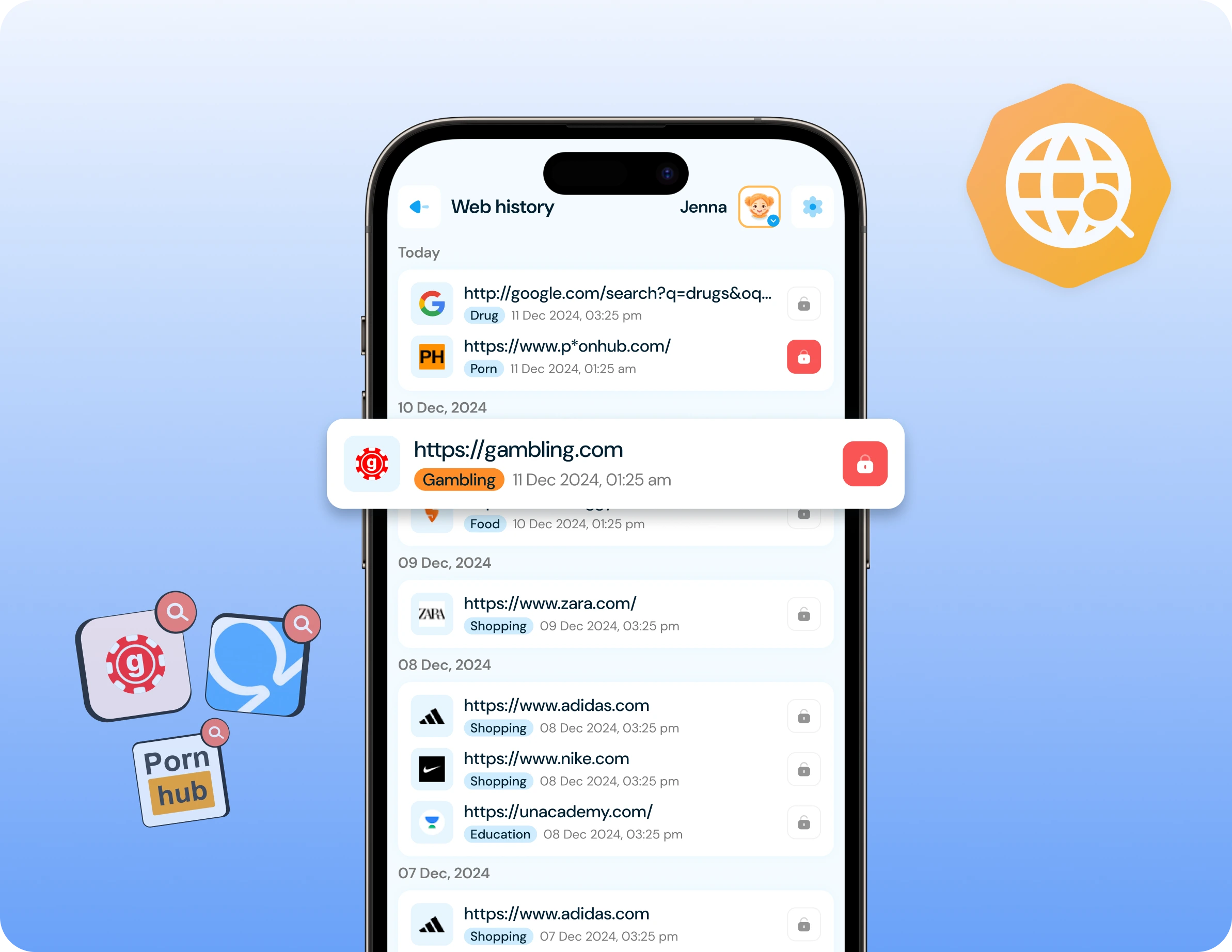
Know which websites your child visits with KidsNanny Web History. Review visited websites, direct page links, visit counts, and timestamps from your parent dashboard to better understand your child’s online activity and identify websites that may need your attention.
Monitor Your Child’s Browsing History
Get a clearer picture of your child’s internet activity without relying only on the browser history stored on their device.
- View visited websites – See a list of websites visited on your child’s supported device through the KidsNanny parent dashboard.
- Open visited pages – Access available direct links to review the websites and pages your child visited.
- See visit counts – Understand how frequently websites are being accessed and identify recurring browsing patterns.
- View timestamps – See when websites were visited to understand browsing activity throughout the day.
- Review online activity – Use browsing history to have informed conversations with your child about websites, apps, and online habits.
Understand Your Child’s Online Activity
Browsing history can give parents useful context about what children are exploring online.
- Spot potentially inappropriate websites – Identify visits to websites that may contain adult, violent, gambling, or other age-inappropriate content.
- Notice unusual browsing patterns – Look for repeated visits, unfamiliar websites, or changes in your child’s normal online activity.
- Understand online interests – Learn more about the topics, games, hobbies, and information your child is exploring.
- Support safer conversations – Use actual browsing activity as a starting point for age-appropriate conversations about online safety.
- Take action when needed – If you find a website that is not appropriate, use KidsNanny Content Filter to review or block it according to your family’s rules.
Web History + Content Filter
Web History and Content Filter work together, but they solve two different problems.
Web History – Monitoring & Awareness
- Shows websites your child has already visited.
- Helps parents understand browsing habits.
- Provides available URLs, visit counts, and timestamps.
- Helps identify unfamiliar or concerning websites.
- Gives parents context for conversations about online activity.
- Can help parents decide which websites should be blocked.
Content Filter – Prevention & Blocking
- Blocks websites according to configured rules.
- Filters websites by available categories or domains.
- Helps prevent access to inappropriate online content.
- Lets parents create website blocking rules.
- Works proactively rather than only showing past browsing activity.
Use Web History to understand what happened. Use Content Filter to help prevent access to websites you do not want your child to visit.
How to View Your Child's Browsing History?
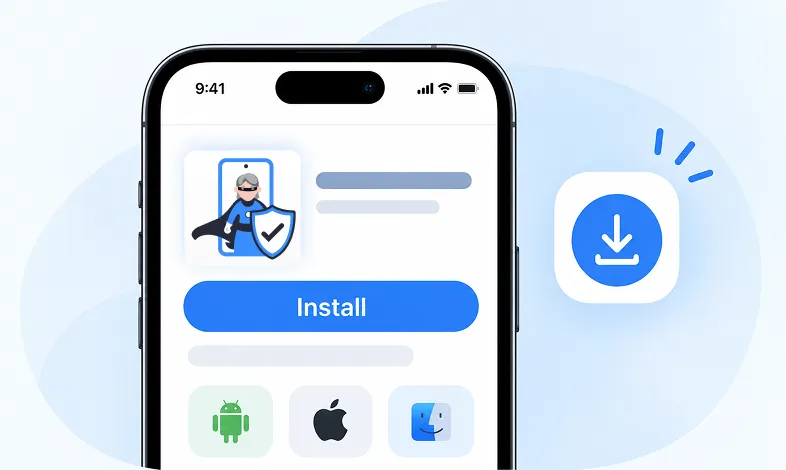
Step 1 Install KidsNanny
Download KidsNanny App from Google Play Store or App Store on your own device.
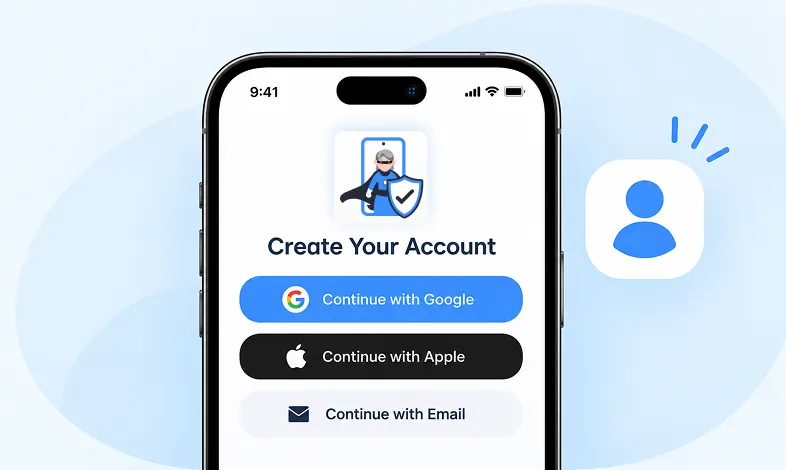
Step 2 Create your Account
Create a KidsNanny account or log in with Google, Apple, or email.
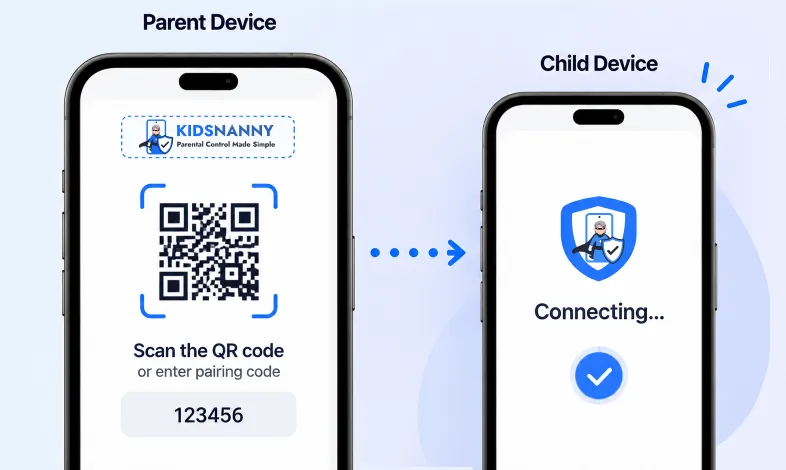
Step 3 Scan & Connect
Scan the QR code or enter the pairing code to easily and securely connect your child’s device.
Review Websites Across Supported Browsers
Keep browsing activity easier to review from one parent dashboard.
- Browser activity in one place – Review available website visits from supported browsers through KidsNanny.
- Chrome activity – Review supported website activity from Chrome on compatible devices.
- Safari activity – Review supported website activity from Safari on compatible devices.
- Other supported browsers – Review available browsing activity from other supported browsers according to the child device and operating system.
- Direct website access – Open available website links from the Web History section for easier review.
Important: Browser coverage and available data can vary by device, operating system, permissions, and browser architecture.
Explore More KidsNanny Parental Controls
Real-Time Alerts
Receive instant alerts for harmful content detection, location activity, and child safety events.
View AlertsLocation Tracker

Real-time GPS tracking to know where your child is at all times with geofencing alerts.
Enable Location Tracker

Camera Shield
AI checks camera use and video calls for nudity, blocks the app instantly, and alerts you.
Enable Camera Shield

Screen Scanner
Capture screenshots of your child's device activity to review what they're viewing.
Enable Screen Scanner

WhatsApp Shield
Monitor WhatsApp messages and protect your child from inappropriate conversations and strangers.
Enable WhatsApp Tracker

YouTube Control
Review watch history, block channels, and allow only parent-approved channels on YouTube.
Try YouTube Control

Content Filter
Block harmful websites by category or domain, and allow only the sites you trust.
Enable Content Filter

Screen Time Limit
Set daily usage limits and schedule screen-free times for healthier device habits.
Set Screen Time

App Blocking
Block specific apps or whole categories like games, social media, or dating apps.
Block Harmful Apps

Instant Lock Down
Remotely lock your child's device instantly when needed for immediate control.
Enable Instant Lock Down

Web History
See which websites your child visits, when, and how often, in one parent dashboard.
View Web History

Insights & Statistics
View detailed analytics and reports on your child's digital behavior and app usage patterns.
View Usage & Monitor

Task & Rewards
Create tasks and chores with reward systems to encourage positive behavior and responsibility.
Create TaskWhat parents say about
KidsNanny
Emily Smith
This app is excellent for monitoring our kids screen time. It allows us to block app usage on basis of app usage data, showing us what our kids are doing on the web and YouTube...
Sam Parker
I've found KidsNanny to be an absolute lifesaver when it comes to my grandson's online safety and screen time management. As a grandmother, KidsNanny is my digital parenting ally...
David Singh
This app is incredibly helpful in keeping track of my kid's whereabouts, thanks to features like geofencing and location tracking. Additionally, I can easily monitor their web history which has been super beneficial. Definitely a must-have for any parent.!!
Jean Dupont
Excellent app to monitor Kids mobile usage. Have control on screen time usage and their effective usage of device for their development.. Caring parents should definitely try it.
Sarah Thompson
Thank you for this amazing product. It is very crucial for the security and privacy of us as children and also for parents. It has enhanced our child's protection by productive tracking system. The overall experience is great to have.
Amrut
New feature Whatsapp Shield is awesome. The Unified Screen Time Management feature is fantastic. Before using this app, I had to set up screen limits individually for each of my son's two phones, and even then, he was still misusing them...
Emily Smith
This app is excellent for monitoring our kids screen time. It allows us to block app usage on basis of app usage data, showing us what our kids are doing on the web and YouTube...
Sam Parker
I've found KidsNanny to be an absolute lifesaver when it comes to my grandson's online safety and screen time management. As a grandmother, KidsNanny is my digital parenting ally...
David Singh
This app is incredibly helpful in keeping track of my kid's whereabouts, thanks to features like geofencing and location tracking. Additionally, I can easily monitor their web history which has been super beneficial. Definitely a must-have for any parent.!!
Jean Dupont
Excellent app to monitor Kids mobile usage. Have control on screen time usage and their effective usage of device for their development.. Caring parents should definitely try it.
Sarah Thompson
Thank you for this amazing product. It is very crucial for the security and privacy of us as children and also for parents. It has enhanced our child's protection by productive tracking system. The overall experience is great to have.
Amrut
New feature Whatsapp Shield is awesome. The Unified Screen Time Management feature is fantastic. Before using this app, I had to set up screen limits individually for each of my son's two phones, and even then, he was still misusing them...
Web History FAQs
What is a child browsing history tracker?
A child browsing history tracker helps parents review websites their child has visited. KidsNanny Web History provides available website URLs, direct links, visit counts, and timestamps through the parent dashboard.
How can I see my child’s browsing history?
After connecting your child’s supported device to KidsNanny, open the Web History section from the parent dashboard to review available websites, links, visit counts, and timestamps.
What information does KidsNanny Web History show?
Depending on the supported device and configuration, Web History can show visited website URLs, direct links, the number of visits, and timestamps associated with website activity.
Can I see which websites my child visits?
Yes. KidsNanny Web History is designed to show available websites visited on your child’s supported device so parents can review their child’s online activity.
Can I open websites from the browsing history?
Yes. Where a direct link is available, parents can open the visited page from the Web History section for easier review.
Does Web History work with Chrome and Safari?
KidsNanny supports web history across supported browsers and devices. Browser availability can vary depending on the child’s operating system, browser architecture, permissions, and current KidsNanny support.
Can Web History show social media websites?
Yes. If a supported social media website is visited through a supported browser, its available browsing activity can appear in Web History.
Can Web History help me find inappropriate websites?
It can help parents identify websites that may be inappropriate or unexpected by reviewing visited URLs and browsing patterns. Parents can then use KidsNanny Content Filter to block websites according to their family’s rules.
What is the difference between Web History and Content Filter?
Web History helps parents see and understand websites that have already been visited. Content Filter helps parents block websites and online content according to configured rules.
Using both features gives parents visibility into past browsing activity while also providing tools to prevent access to websites they consider inappropriate.
Can I block a website from Web History?
If you find a website that you do not want your child to access, you can use KidsNanny Content Filter to create an appropriate blocking rule, subject to the capabilities of the child’s supported device.
Does Web History replace a web filter?
No. Web History and web filtering serve different purposes. Web History provides visibility into browsing activity, while Content Filter is designed to prevent access to websites according to configured blocking rules.
How often is Web History updated?
The availability and timing of browsing activity can depend on the child’s device, browser, connection, operating system, and KidsNanny’s current implementation. Check the parent dashboard for the latest available activity.
Can my child delete their browser history?
Do not rely on the browser’s own history alone. KidsNanny Web History uses its own monitoring mechanism on supported devices, but the exact behavior after a child clears browser history can depend on the device, operating system, browser, and current KidsNanny implementation.
Does Web History monitor everything my child does online?
No monitoring system should be described as capturing every aspect of online activity. Web History focuses on supported website activity and its available data can vary by device, browser, operating system, permissions, and technical limitations.
Is Web History available on all devices?
KidsNanny supports Web History on supported platforms, but feature availability can vary by operating system and device. Check the supported-platform information for the current feature availability.
Is my child’s browsing history private?
Browsing history is sensitive information. Access should be limited to the authorized parent account and handled according to KidsNanny’s privacy policy and applicable device permissions.
How can Web History help me talk to my child about online safety?
Use browsing history as context rather than as a reason to constantly monitor or punish your child. If you notice an unfamiliar or concerning website, ask your child what they were looking for and use the opportunity to discuss safer online choices.