


App Blocking & Parental Controls
Block Unwanted Apps and Manage Your Child’s App Usage.
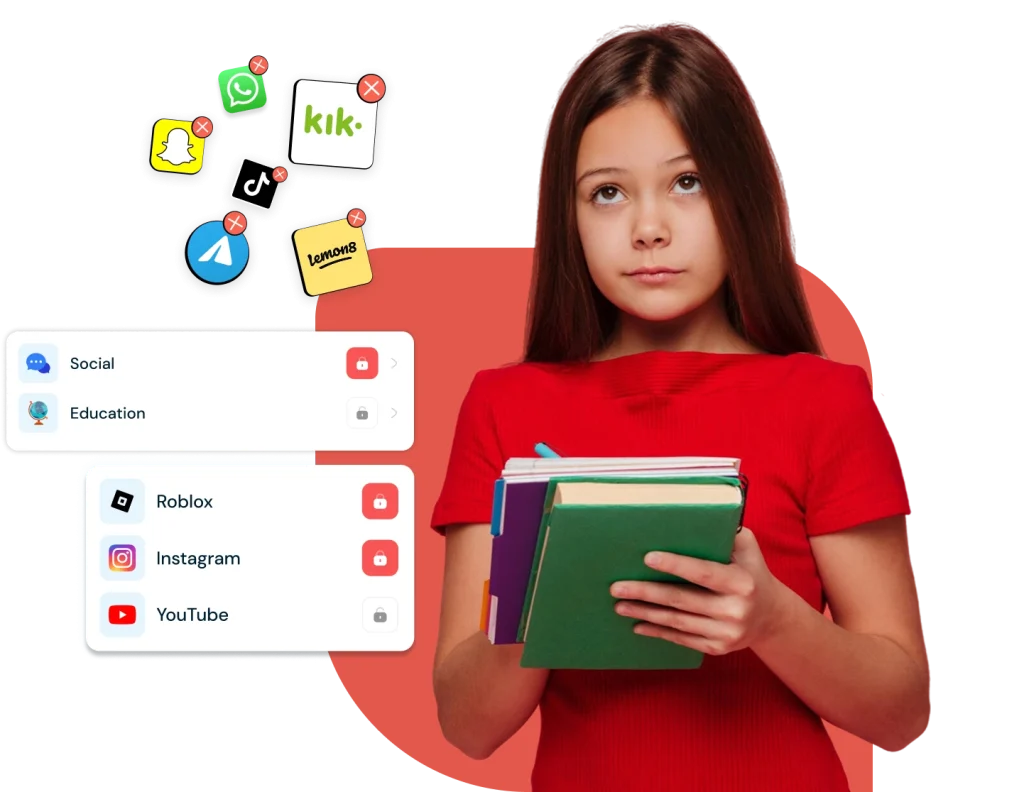
Help your child build healthier digital habits with KidsNanny App Blocking. Block individual apps or entire categories, manage apps that may not be age-appropriate, set usage limits, and keep essential apps accessible. Manage your child’s app access from your parent dashboard.
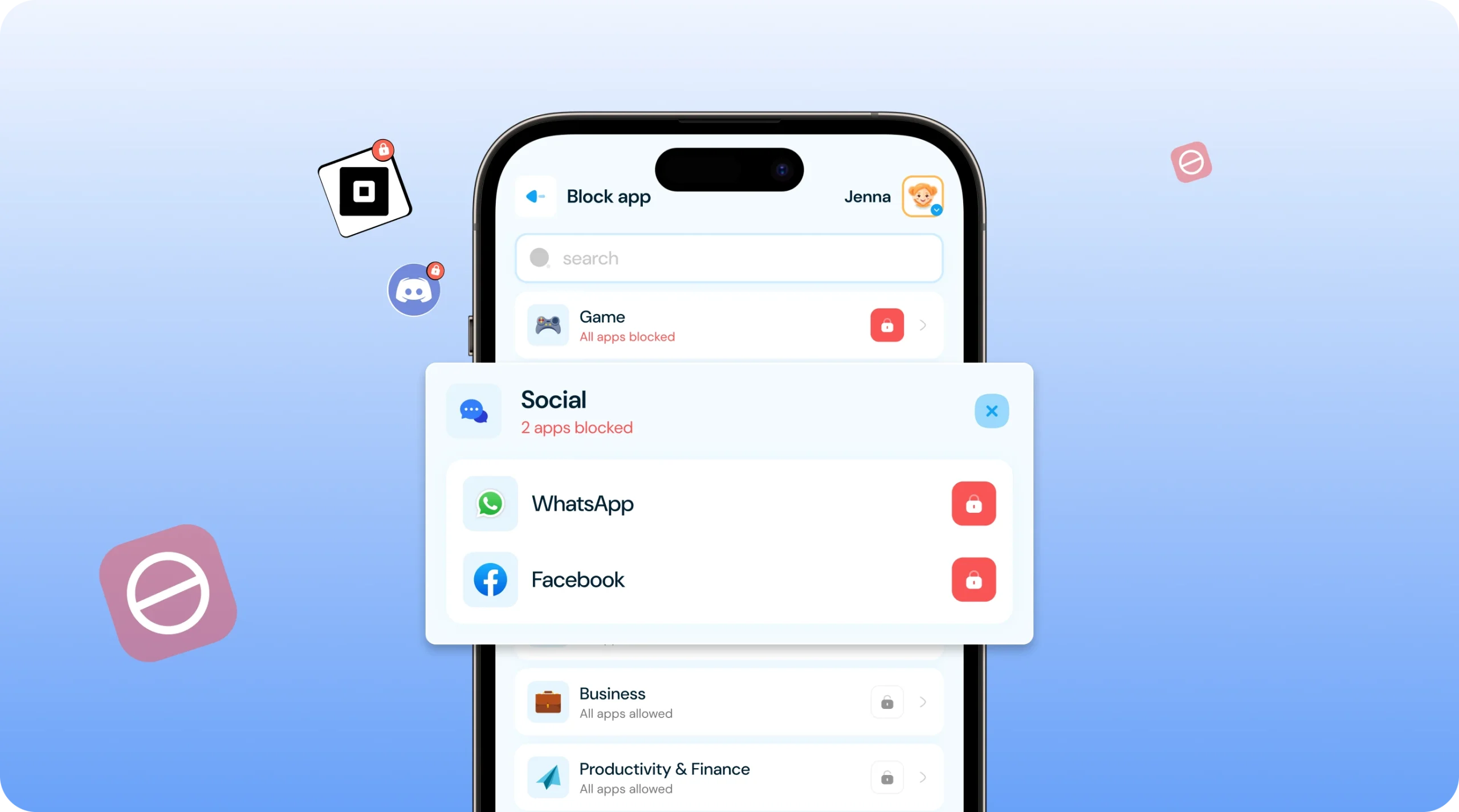
Block Apps by Name or Category
Choose which apps your child can use. Block individual applications or restrict groups of apps, such as games, social media, and entertainment.
- Block Individual Apps – Select specific games, social media apps, or other applications you don’t want your child to access.
- Block Entire App Categories – Restrict groups of applications, such as gaming, social media, or entertainment, without managing every app individually.
- Manage App Access from Your Dashboard – Review your app-blocking settings and update restrictions when your family’s needs change.
- Unblock Apps When Needed – Restore access to previously blocked applications whenever you decide they are appropriate to use again.
Manage Unwanted Apps
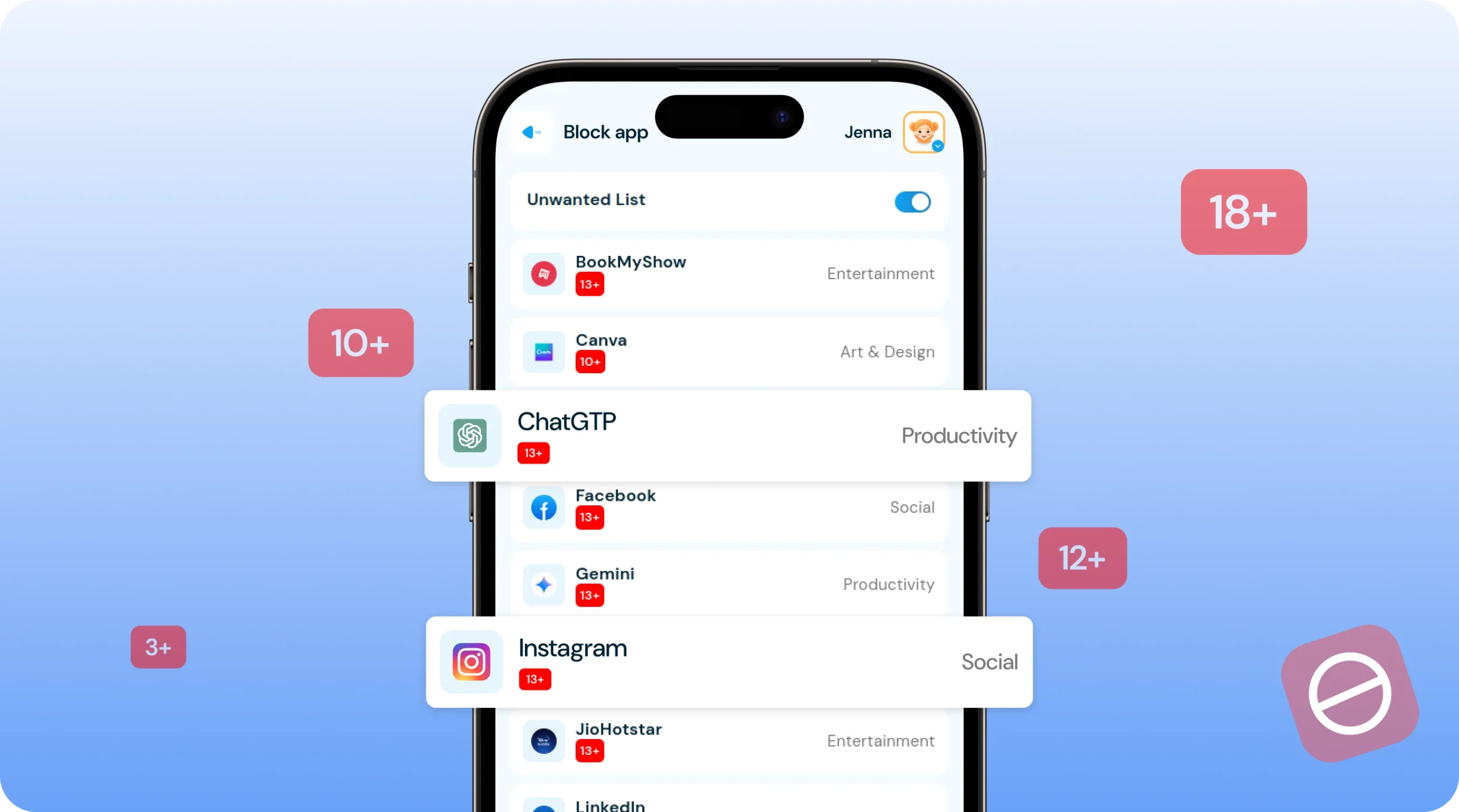
Understand which installed applications may not be suitable for your child’s age. KidsNanny provides age-based app recommendations and ratings to help you make informed decisions about the apps your child uses.
- Identify Age-Inappropriate Apps – Review installed applications flagged by KidsNanny’s age-based recommendations.
- Get App Safety Recommendations – Discover applications that may not be suitable for your child’s age and deserve a closer look.
- Review App Age Ratings – Check available age-rating information to better understand an application’s recommended age suitability.
- Block Unwanted Apps Easily – Select an application from the Unwanted Apps list and use the available blocking option to restrict access.
Set App Time Limits
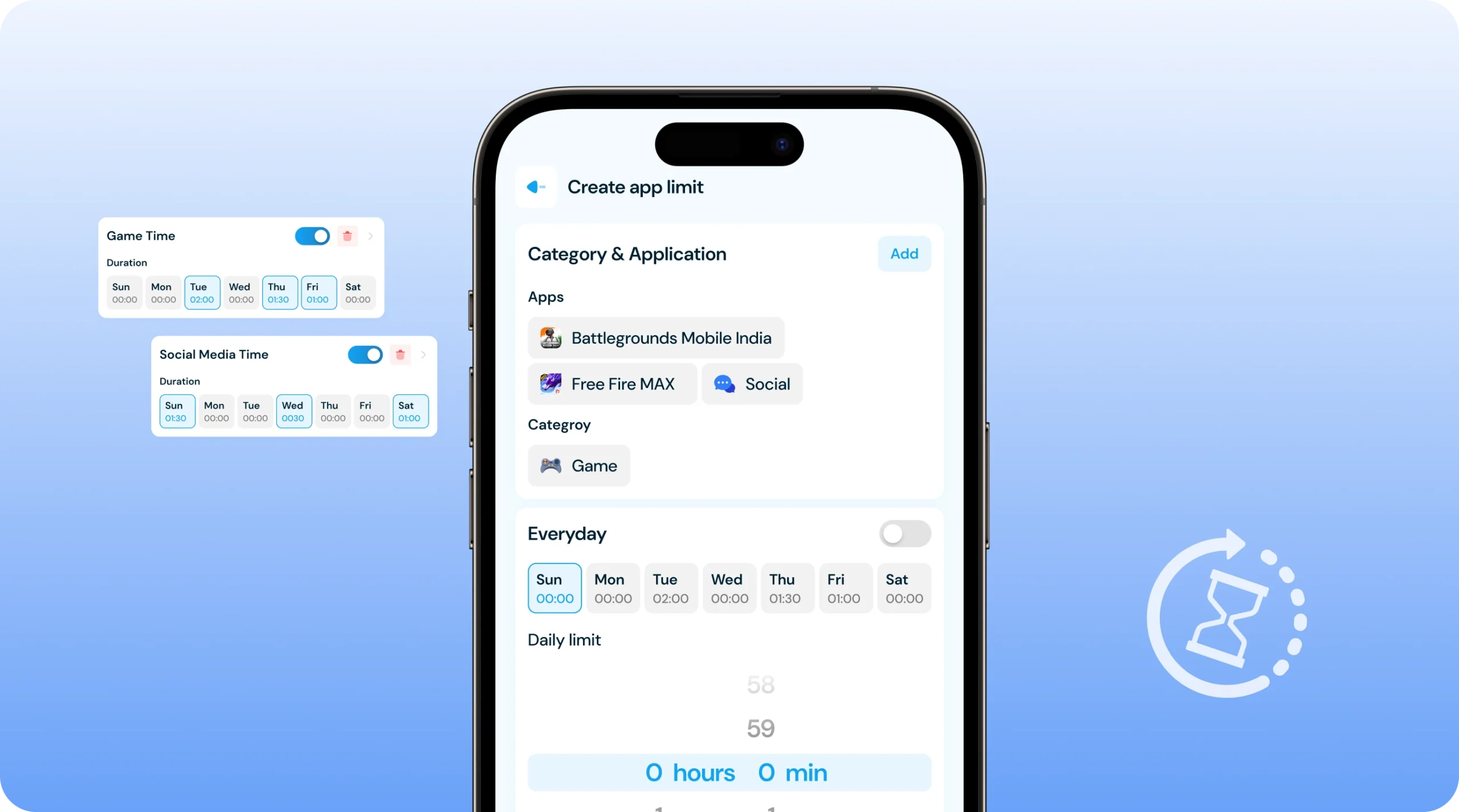
Help your child balance entertainment, learning, and other daily activities by setting limits on app usage instead of blocking every application completely.
- Set Daily App Limits – Choose how much time your child can spend using selected applications each day.
- Limit App Categories – Apply usage limits to supported groups, such as games, social media, or entertainment apps.
- Create Different Usage Rules – Configure app limits and schedules to suit your family’s weekday and weekend routines.
- Encourage Healthy Digital Habits – Use app limits as part of a family media plan that makes room for sleep, homework, physical activity, and time together.
Always Allowed Apps
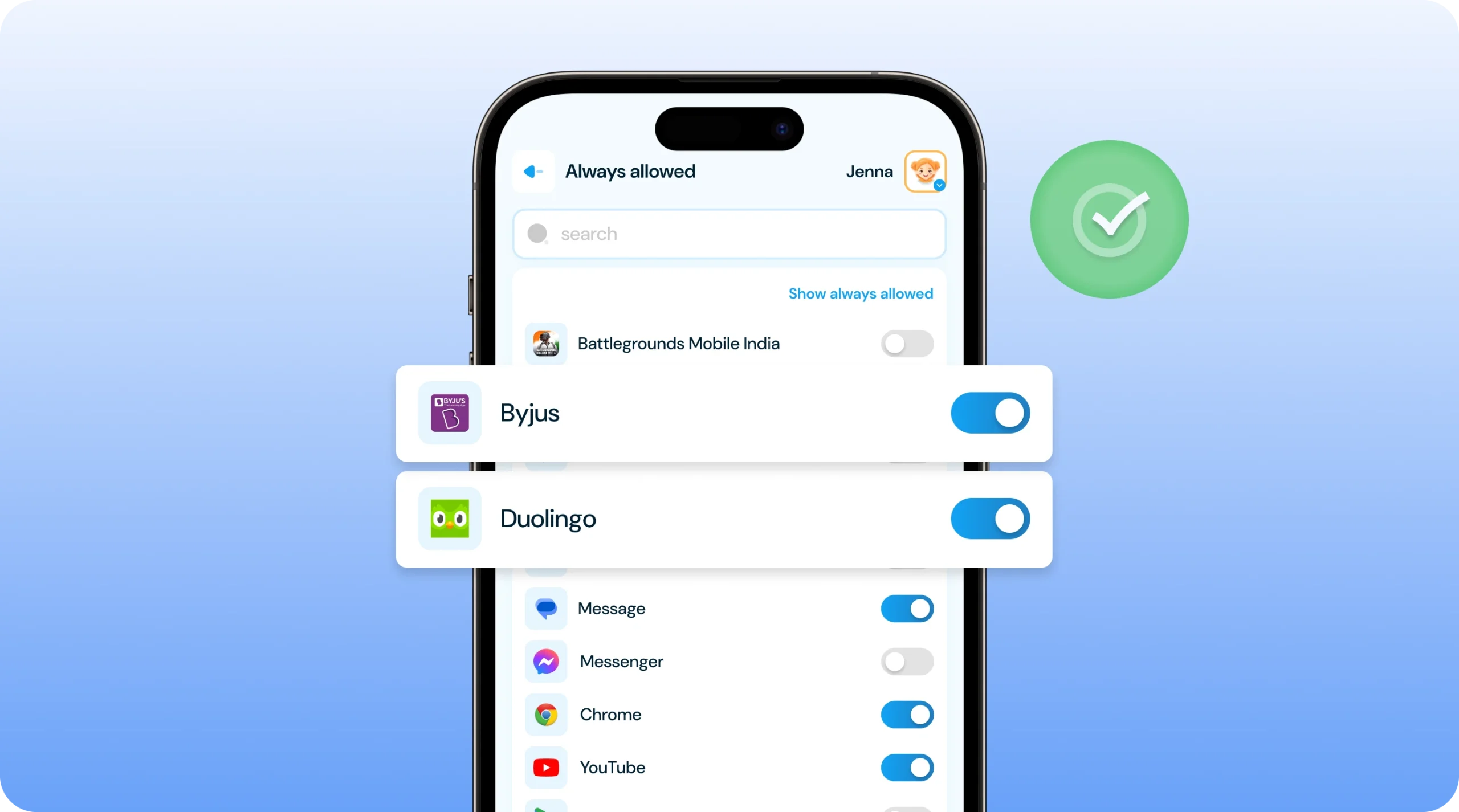
Keep selected essential applications accessible even when App Blocking, App Limits, and Downtime restrictions are active. Choose the apps your child should always be able to use.
- Keep Important Apps Accessible – Add selected applications, such as communication tools or essential apps, to your Always Allowed list.
- Stay Available During Restrictions – Always Allowed apps remain accessible even when app-blocking rules, usage limits, or Downtime schedules are active.
- Support Learning and Communication – Keep approved educational resources and important communication apps available.
- Balance Restrictions and Accessibility – Choose which apps your child needs for everyday activities while managing access to other applications.
How to Block Apps on Your Child's Device
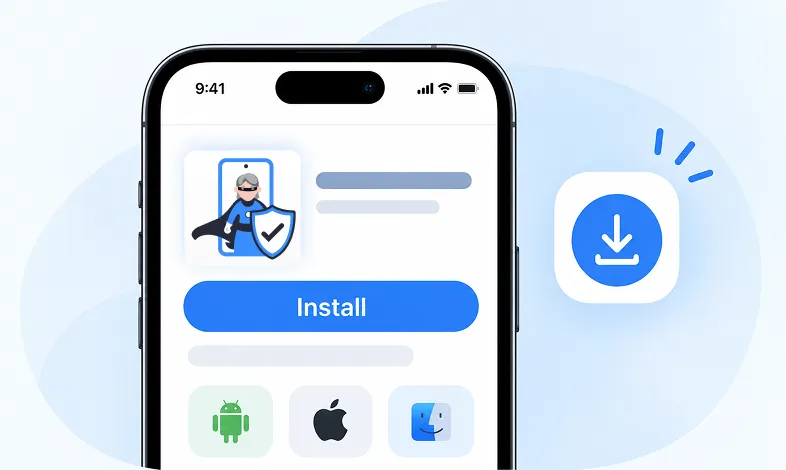
Step 1 Install KidsNanny
Download KidsNanny App from Google Play Store or App Store on your own device.
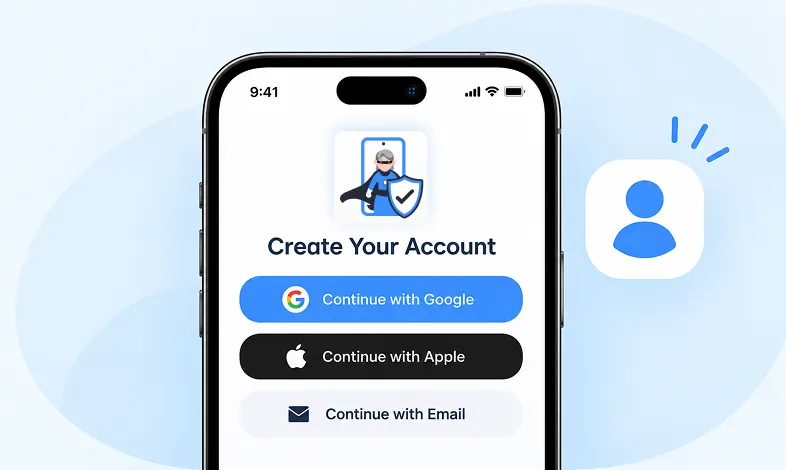
Step 2 Create your Account
Create a KidsNanny account or log in with Google, Apple, or email.
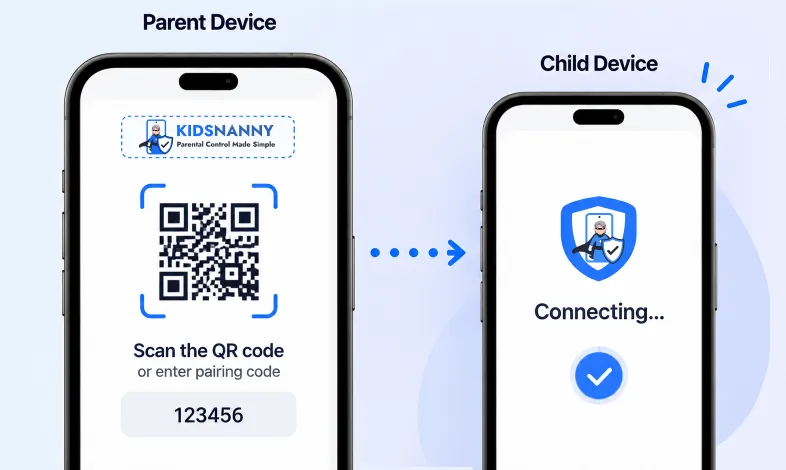
Step 3 Scan & Connect
Scan the QR code or enter the pairing code to easily and securely connect your child’s device.
Explore More KidsNanny Parental Controls
Real-Time Alerts
Receive instant alerts for harmful content detection, location activity, and child safety events.
View AlertsLocation Tracker

Real-time GPS tracking to know where your child is at all times with geofencing alerts.
Enable Location Tracker

Camera Shield
AI checks camera use and video calls for nudity, blocks the app instantly, and alerts you.
Enable Camera Shield
Screen Scanner
Capture screenshots of your child's device activity to review what they're viewing.
Enable Screen Scanner

WhatsApp Shield
Monitor WhatsApp messages and protect your child from inappropriate conversations and strangers.
Enable WhatsApp Tracker

YouTube Control
Review watch history, block channels, and allow only parent-approved channels on YouTube.
Try YouTube Control

Content Filter
Block harmful websites by category or domain, and allow only the sites you trust.
Enable Content Filter
Screen Time Limit
Set daily usage limits and schedule screen-free times for healthier device habits.
Set Screen Time
App Blocking
Block specific apps or whole categories like games, social media, or dating apps.
Block Harmful Apps
Instant Lock Down
Remotely lock your child's device instantly when needed for immediate control.
Enable Instant Lock Down

Web History
See which websites your child visits, when, and how often, in one parent dashboard.
View Web History

Insights & Statistics
View detailed analytics and reports on your child's digital behavior and app usage patterns.
View Usage & Monitor

Task & Rewards
Create tasks and chores with reward systems to encourage positive behavior and responsibility.
Create TaskWhat parents say about
KidsNanny
Emily Smith
This app is excellent for monitoring our kids screen time. It allows us to block app usage on basis of app usage data, showing us what our kids are doing on the web and YouTube...
Sam Parker
I've found KidsNanny to be an absolute lifesaver when it comes to my grandson's online safety and screen time management. As a grandmother, KidsNanny is my digital parenting ally...
David Singh
This app is incredibly helpful in keeping track of my kid's whereabouts, thanks to features like geofencing and location tracking. Additionally, I can easily monitor their web history which has been super beneficial. Definitely a must-have for any parent.!!
Jean Dupont
Excellent app to monitor Kids mobile usage. Have control on screen time usage and their effective usage of device for their development.. Caring parents should definitely try it.
Sarah Thompson
Thank you for this amazing product. It is very crucial for the security and privacy of us as children and also for parents. It has enhanced our child's protection by productive tracking system. The overall experience is great to have.
Amrut
New feature Whatsapp Shield is awesome. The Unified Screen Time Management feature is fantastic. Before using this app, I had to set up screen limits individually for each of my son's two phones, and even then, he was still misusing them...
Emily Smith
This app is excellent for monitoring our kids screen time. It allows us to block app usage on basis of app usage data, showing us what our kids are doing on the web and YouTube...
Sam Parker
I've found KidsNanny to be an absolute lifesaver when it comes to my grandson's online safety and screen time management. As a grandmother, KidsNanny is my digital parenting ally...
David Singh
This app is incredibly helpful in keeping track of my kid's whereabouts, thanks to features like geofencing and location tracking. Additionally, I can easily monitor their web history which has been super beneficial. Definitely a must-have for any parent.!!
Jean Dupont
Excellent app to monitor Kids mobile usage. Have control on screen time usage and their effective usage of device for their development.. Caring parents should definitely try it.
Sarah Thompson
Thank you for this amazing product. It is very crucial for the security and privacy of us as children and also for parents. It has enhanced our child's protection by productive tracking system. The overall experience is great to have.
Amrut
New feature Whatsapp Shield is awesome. The Unified Screen Time Management feature is fantastic. Before using this app, I had to set up screen limits individually for each of my son's two phones, and even then, he was still misusing them...
App Blocking FAQs
How do I block a specific app on my child's device?
- Sign in to your KidsNanny parent dashboard.
- Open the App Blocking section.
- Find the application you want to restrict.
- Select the lock or block option available for that app.
The restriction applies according to your child’s supported device and active settings.
How do I block app categories?
Open App Blocking in your parent dashboard and select the category you want to restrict, such as Gaming, Social Media, or Entertainment. Enable the available blocking option to apply the restriction to supported apps in that category.
What is the Unwanted Apps list?
The Unwanted Apps list helps parents identify installed applications that may not be suitable for their child’s age. KidsNanny provides age-based app recommendations and ratings so parents can review applications and decide whether to restrict them.
What are Always Allowed apps?
Always Allowed apps are applications you select to remain accessible even when App Blocking, App Limits, and Downtime restrictions are active. Add important communication, educational, or other essential applications according to your family’s needs.
Why is app blocking not working?
First, check that your child’s device is connected to KidsNanny and the required permissions are enabled. On supported Android devices, check Accessibility and Display over other apps permissions where required. Also review your blocking settings, schedules, and Always Allowed list. If the problem continues, contact KidsNanny support.
How is App Blocking different from Screen Time Limits?
App Blocking restricts access to selected applications. Screen Time Limits control how long your child can use selected apps or the device. You can use both features together to manage access and encourage balanced device habits.
Can I schedule when apps are blocked?
You can configure usage limits and schedules using the available App Limits and Downtime settings. App Blocking restricts selected applications, while scheduled restrictions help manage device use during specific periods. Always Allowed apps remain accessible during these restrictions.
Can I unblock an app after blocking it?
Yes. Open App Blocking in your parent dashboard, find the restricted application, and use the available unblock option to restore access.
Does KidsNanny App Blocking work on Android, iPhone, and Mac?
Yes. KidsNanny supports App Blocking on Android, iOS, and Mac. Specific controls and their behaviour may vary by operating system and device configuration.
Can my child bypass app-blocking restrictions?
App restrictions depend on the supported device, operating system, required permissions, and configuration. Keep the KidsNanny app and necessary permissions active, and review device settings if restrictions stop working. No parental control tool should be assumed to prevent every possible workaround.
Should I block all entertainment apps?
Not necessarily. Consider your child’s age, schoolwork, interests, sleep, and other daily activities before deciding which apps to restrict. You can block unsuitable applications, set reasonable usage limits, and keep appropriate educational or communication apps accessible.