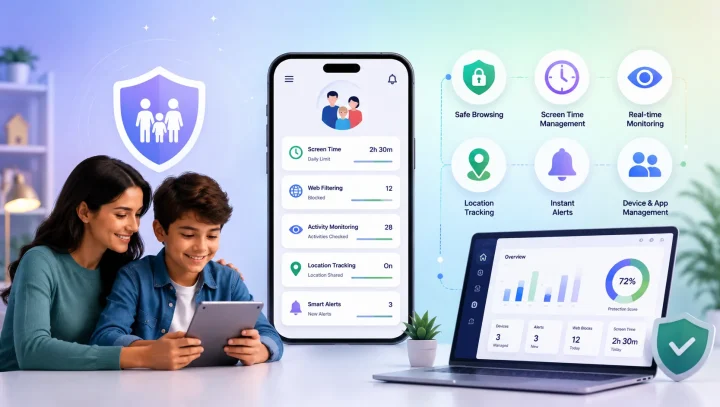

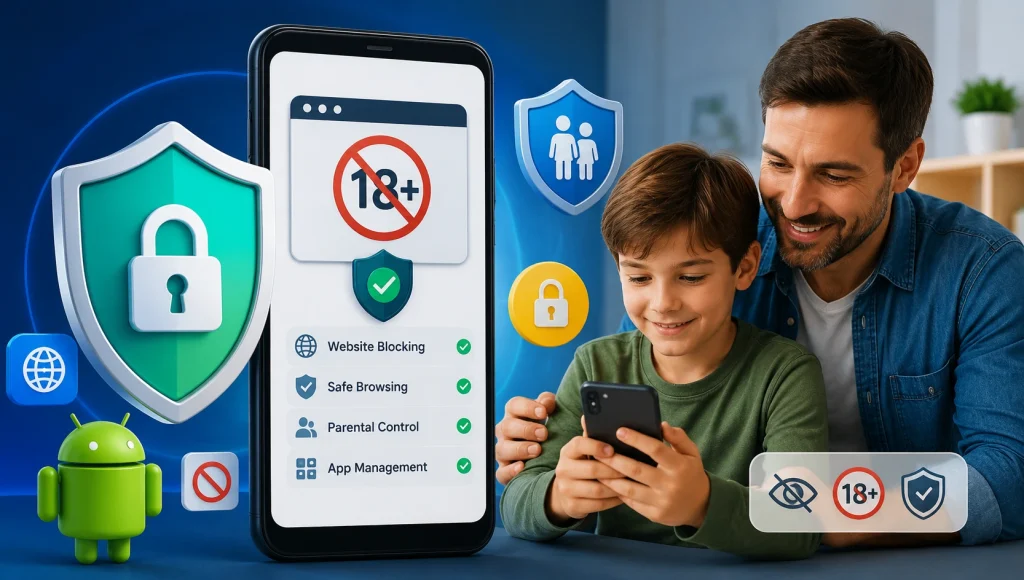
The internet gives children access to incredible educational resources, creative tools and opportunities to learn. Unfortunately, it also makes explicit and adult content easier to find than ever before. Whether a child discovers pornography accidentally, through curiosity, or because someone shares a link, most parents want practical ways to reduce that risk.
If you’re wondering about the best way to block porn on Android, the honest answer is that there is no single magic setting. The most effective approach combines multiple layers of protection: Google’s built-in safety features, Android parental controls, safe browsing habits, and open conversations with your child. In this guide you’ll learn how to reduce exposure to adult content on Android devices, understand the strengths and limits of each method, and choose the right level of protection for your family. For the wider picture beyond Android, see our companion guide on how to block Pornhub and adult content on any device.
Quick, free option: Browsely is our free safe browser for Android and iPhone. It blurs explicit images and videos before your child sees them, and there’s no account to create. To block harmful websites across the whole phone, not just one browser, try KidsNanny’s Content Filter with a 7-day free trial.
Why blocking adult content matters
Children can come across explicit material in many ways — and most of the time it isn’t because they went looking for it:
- Accidental Google searches
- Shared links from friends
- Social media recommendations
- Messaging apps
- Pop-up advertisements
- Video-sharing platforms
- Online games with built-in browsers
Research suggests that many young people encounter online pornography during adolescence, and not every exposure is intentional. In a 2023 survey by Common Sense Media, a majority of teens reported having seen online pornography, and more than half of those who had said they came across it accidentally at least some of the time. Because of this, child-safety organisations such as the Family Online Safety Institute and Canada’s MediaSmarts generally recommend combining technical safeguards with age-appropriate conversations about online safety.
Blocking adult content isn’t about removing trust. It’s about creating a safer digital environment while children develop the judgment they need to navigate the internet responsibly.
Can you completely block porn on Android?
The honest answer is no. No filtering solution can guarantee that every piece of explicit content will be blocked. New websites appear every day, content is shared across apps, and children may discover material in unexpected places.
What you can do is significantly reduce exposure by using several protective measures together:
- Google SafeSearch
- Android parental controls
- Google Family Link
- Safe DNS filtering
- A kid-safe browser
- App management
- Screen time controls
- Ongoing parent–child communication
Rule of thumb: Using several layers of protection together is far more effective than relying on any single tool. If one layer misses something, another is there to catch it.
Method 1: Turn on Google SafeSearch
One of the easiest first steps is enabling SafeSearch. It helps filter explicit images, videos and web pages from Google Search results. It won’t block every website on the internet, but it reduces the likelihood that explicit content appears during a Google search.
How to enable SafeSearch on Android
- Open the Google app or google.com in your browser.
- Go to Settings → SafeSearch (or visit Google’s SafeSearch settings page).
- Choose Filter to block explicit results.
- For supervised child accounts, lock SafeSearch on through Google Family Link so it can’t be switched off.
Benefits
- Free
- Easy to enable
- Works with Google Search
- Helps reduce accidental exposure
Limitations
- Only affects Google Search.
- Doesn’t block websites opened directly.
- Doesn’t filter content inside many third-party apps.
That’s why SafeSearch is a first layer, not the whole answer.
Method 2: Use Google Family Link
Google Family Link is Google’s free parental control service for supervised child accounts. It lets parents approve or block app downloads, set screen time limits, manage bedtime schedules, see installed apps, help locate a child’s device, and apply content restrictions where supported. It can also help keep SafeSearch enabled for eligible supervised accounts.
Family Link doesn’t directly block every adult website, but it provides valuable controls that reduce access to risky content and help you manage how younger children use Android devices. It works best when combined with the other filtering methods below. If you’re weighing it against a dedicated app, our KidsNanny vs Google Family Link comparison breaks down where each one fits.
Method 3: Enable Safe Browsing
Google Chrome includes Safe Browsing, which helps warn users about phishing sites, malware, and other dangerous webpages.
While Safe Browsing is not designed specifically to block pornography, it is still an important security feature because it helps protect children from harmful websites that may attempt scams or distribute malicious software.
To check that it’s enabled:
- Open Chrome.
- Tap Settings.
- Go to Privacy and Security.
- Verify that Safe Browsing is enabled.
Method 4: Use Safe DNS Filtering
A family-friendly DNS service can prevent many adult websites from loading by filtering requests before the webpage opens.
A family-friendly DNS service can prevent many adult websites from loading by filtering requests before the webpage opens.
Many families choose family-safe DNS services because they:
- Block known adult websites
- Reduce exposure to explicit content
- Require no browser extensions
- Work across many websites
Keep in mind that DNS filtering isn’t perfect. Some websites may still bypass filters, and determined users may attempt to change DNS settings unless the device is supervised.
Method 5: Give younger kids a kid-safe browser (Browsely)
SafeSearch and DNS filter the sites a child reaches, but the browser itself is still a general-purpose one. For younger children, one of the simplest options is to replace the open browser with one built for kids from the ground up.
Browsely by KidsNanny is an AI-powered safe browser that filters adult and inappropriate content in real time as pages load — not just against a fixed blocklist. Because it evaluates content on the fly, it can catch brand-new sites that a static DNS list hasn’t seen yet, and it keeps working across searches and links inside the browser. For families who want a single, kid-first place to browse rather than hardening a general browser, it’s the most direct way to block porn on Android. We cover the wider category, including how a real-time AI browser compares to traditional filters, in our guides to an AI safe browser for kids and the best safe browsing apps for kids.
Tip: A kid-safe browser is most effective when it’s the only browser a young child can open. Use app controls (below) to block or hide other browsers so children can’t simply switch to Chrome to get around it.
Method 6: Restrict app downloads and hidden browsers
Many children discover explicit material through apps rather than traditional websites — and some apps quietly contain their own browser. When reviewing what your child installs, pay attention to:
- Anonymous chat apps
- Private or “secret” browsers
- File-sharing apps
- Social media platforms
- Video-sharing apps
- VPN applications that can bypass filters
Google Family Link can require parental approval before new apps are installed, and a parental control app can block or limit specific apps outright — useful for shutting the door on secondary browsers and VPNs. It’s also worth blocking incognito mode, which children often use to browse without leaving a trace.
Method 7: Use a Dedicated Website Blocker or Parental Control App
While Android offers useful built-in safety features, many parents prefer a dedicated parental control app for more comprehensive protection.
A quality parental control solution can help you:
- Block adult and inappropriate websites
- Filter content by category
- Set screen time limits
- Block or limit specific apps
- Monitor browsing activity (where supported)
- Receive alerts about concerning online behavior
- Manage multiple family devices from one dashboard
Unlike browser-only solutions, parental control apps can provide protection across different browsers and apps, depending on the permissions granted and the device configuration.
When Is a Parental Control App the Right Choice?
A dedicated parental control app may be helpful if your child:
- Uses multiple browsers
- Has access to social media apps
- Frequently installs new apps
- Uses the device without supervision
- Is old enough to understand and potentially bypass basic restrictions
Look for a solution that is transparent about what it monitors, provides clear privacy controls, and lets parents customize settings based on the child’s age and needs.
Method 8: Manage Screen Time
Reducing unrestricted screen time can also lower the chances of children encountering inappropriate content.
Consider creating a daily routine with:
- Homework hours
- Family time
- Outdoor activities
- Reading
- Device-free meals
- Bedtime without screens
Google Family Link and many parental control apps allow parents to:
- Set daily screen time limits
- Lock devices during bedtime
- Pause device access remotely
- Schedule downtime for school or family activities
These controls help children develop healthier digital habits while reducing late-night browsing. For a step-by-step walkthrough, see our guide on how to set screen time limits on Android and iPhone.
Method 9: Talk With Your Child About Online Content
Technology alone cannot replace guidance from parents.
As children grow, curiosity about relationships, bodies, and sexuality is natural. Rather than reacting with anger or punishment if they encounter explicit material, experts generally recommend having calm, age-appropriate conversations.
You might discuss:
- Why some websites are not designed for children
- How online content doesn’t always reflect healthy relationships
- What to do if they accidentally see something upsetting
- Why they should tell a trusted adult if someone shares explicit content
Creating an environment where children feel comfortable asking questions can be just as important as using technical protections.
Common Mistakes Parents Make
Even well-intentioned parents sometimes rely on a single solution.
Common mistakes include:
- Assuming SafeSearch blocks everything.
- Forgetting that explicit content can appear inside apps.
- Not updating parental control settings as children grow.
- Allowing unrestricted browser installations.
- Never reviewing privacy or content settings.
- Relying only on technology without discussing online safety.
The most effective approach combines technical controls with regular conversations about responsible internet use.
Comparison: popular ways to block porn on Android
No single method blocks everything — here’s how the main options stack up so you can decide which layers to combine.
| Method | Setup | Blocks adult sites | Works across apps | Best for |
|---|---|---|---|---|
| Google SafeSearch | Easy | Partial | No | Basic Google searches |
| Google Family Link | Easy | Partial | Limited | Younger kids with supervised Google accounts |
| Chrome Safe Browsing | Easy | No (unsafe sites only) | Chrome only | Protection against malicious sites |
| Family-safe DNS | Moderate | Yes (many known sites) | Often across browsers | Network-level filtering |
| Kid-safe browser (Browsely) | Easy | Yes (real-time AI) | Within the browser | Younger children who need one safe place to browse |
| Parental control app (KidsNanny) | Moderate | Yes | Broad coverage | Families wanting all layers in one place |
Important: No single method can guarantee that all explicit content will be blocked. Combining several tools generally provides much better protection than relying on one setting alone.
How KidsNanny Can Help
Parents looking for more comprehensive protection may choose a parental control app alongside Android’s built-in features.
For example, KidsNanny offers tools designed to help families manage children’s digital activity, including:
- Website blocking
- Screen time management
- App blocking and app limits
- YouTube activity monitoring
- Screen monitoring features
- Real-time alerts for selected online activities
- Location tracking
- Family-friendly management tools
Rather than replacing conversations with your child, these tools can support healthy digital habits and help parents stay informed.
Signs your child may need stronger online protection
Every child is different, but it may be worth reviewing your safety settings if you notice:
- Browsing late at night without supervision
- Frequently clearing browser history
- Using private or incognito browsing
- Installing unfamiliar apps
- Spending significantly more time online
- Becoming secretive about device use
- Using multiple browsers to reach websites
These behaviours don’t automatically mean a child has seen inappropriate content, but they’re a good reason to have a supportive conversation and review your family’s digital safety rules.
Extra tips to make your Android device safer
Alongside blocking adult websites, these habits keep the whole device more secure:
- Keep Android updated with the latest security patches.
- Review installed apps regularly.
- Disable app installation from unknown sources unless necessary.
- Use strong passwords or biometric locks.
- Check browser privacy and content settings.
- Encourage children to report anything that makes them uncomfortable online.
- Review online safety settings together as your child gets older.
Frequently Asked Questions
Can Android block all porn websites?
No. There is currently no solution that can guarantee every adult website will be blocked. Using multiple layers of protection—including SafeSearch, Family Link, DNS filtering, and parental controls—provides stronger protection.
Is Google SafeSearch enough?
SafeSearch is a helpful first step, but it only filters Google Search results. It does not block all websites or content inside apps.
Is Google Family Link free?
Yes. Google Family Link is available at no cost for eligible Google accounts and offers parental supervision features for children’s devices.
Can children bypass parental controls?
Older children and teenagers may attempt to bypass restrictions using VPNs, different browsers, or other methods. Keeping devices updated, reviewing settings regularly, and maintaining open communication can make bypassing more difficult.
What age should children have unrestricted internet access?
There is no universal age. The appropriate level of independence depends on your child’s maturity, digital literacy, and ability to make safe decisions online. Many families gradually reduce restrictions as children demonstrate responsible online behavior.
Should parents monitor browsing history?
Many families choose to review browsing activity with younger children as part of teaching safe internet use. As children mature, it’s important to balance safety with growing independence and privacy. Discussing expectations openly can help build trust.

Final Thoughts
Protecting children from explicit content on Android isn’t about finding one perfect setting—it’s about building a layered approach that combines technology, education, and communication.
Start with Android’s built-in tools such as Google SafeSearch, Family Link, and Safe Browsing. Add family-safe DNS filtering or a trusted parental control app if you need broader protection. Most importantly, maintain regular, age-appropriate conversations so your child knows they can come to you with questions or concerns.
No filter is perfect, but by combining multiple safeguards and staying involved in your child’s digital life, you can significantly reduce the chances of accidental exposure to adult content while helping them develop healthy online habits.
Next step: if you only need a safer browser for a younger child, download Browsely free.