
Discovering that your child has disabled parental controls can be frustrating, especially when you set them up to help keep your child safe online. But before reacting, remember that there may be several reasons behind the behavior.
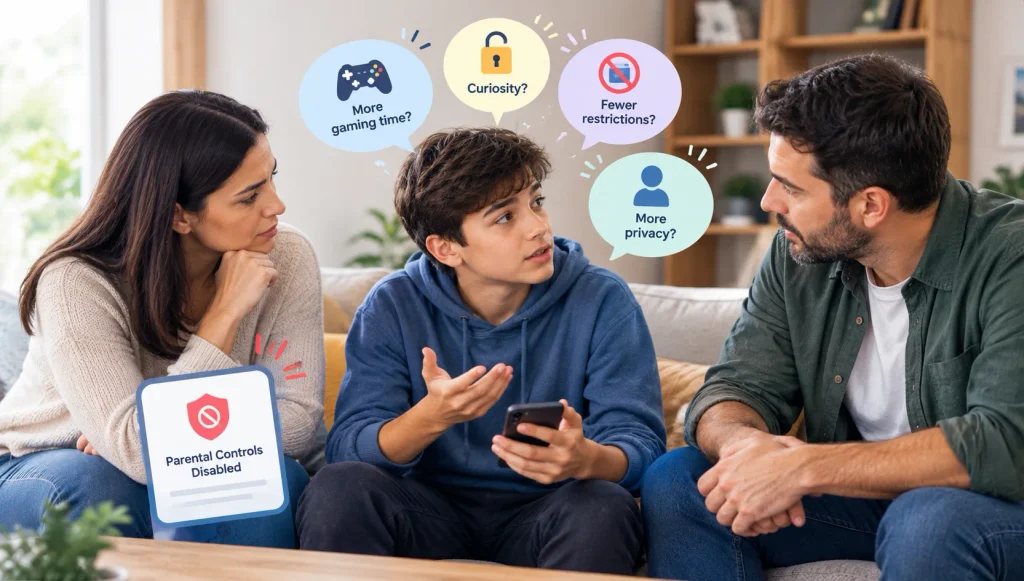
Your child might want more screen time, feel restricted by certain rules, be curious about how device settings work, or want greater privacy, sometimes by using secret apps kids use to hide things from parents.
A parental control tampering alert can help you identify when a protection setting has been changed or disabled, if your parental control app supports that feature. Here’s how to respond in a way that protects your child while maintaining trust.
Start by Checking What Changed
Before assuming your child deliberately bypassed the rules, check the device and parental control app. A setting may have changed after a software update, a device reset, an app permission change, or an accidental action.
If monitoring or protection has been disabled, follow the app’s official instructions to restore the relevant settings. Check that important features, such as screen time limits and web filtering, are working again.
How to Detect and Prevent Parental Control Tampering
If parental controls suddenly stop working, check whether the app has been removed, required permissions have been disabled, or important protection settings have changed. Identifying the issue early can help you restore the safeguards your family relies on.
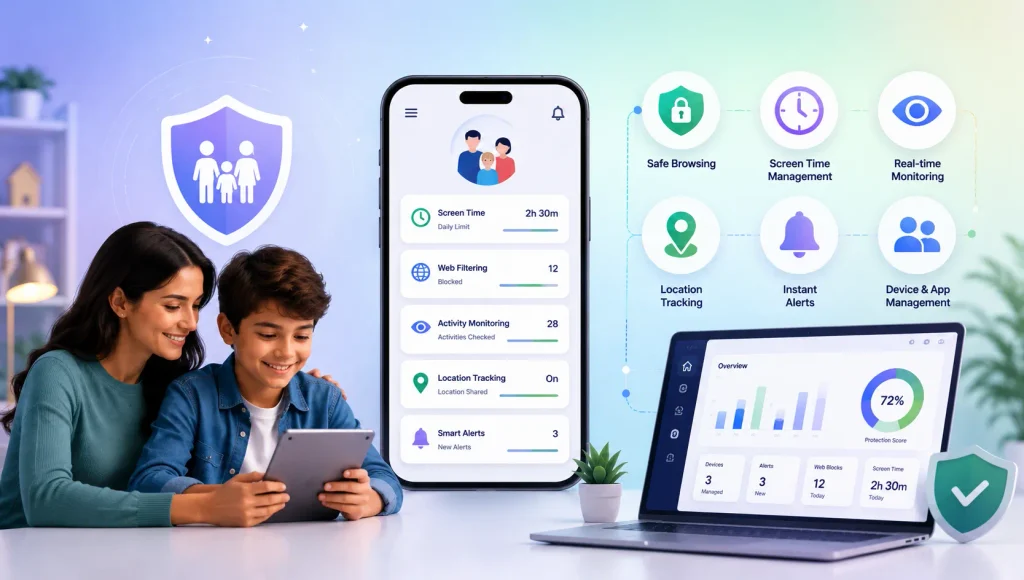
Some parental control apps, including KidsNanny, offer protections to help parents identify these changes. With KidsNanny, the child app cannot be uninstalled without entering the parent PIN. Parents can also receive notifications when supported device permissions or settings are disabled, including Accessibility, location, storage, notifications, and device administrator access.
If you receive a tampering-related alert, here’s what to do:
- Check the alert: Identify which permission or protection setting has changed.
- Restore required permissions: Follow the app’s instructions to re-enable the relevant settings on your child’s device.
- Verify protection is working: Confirm that the app is connected and the relevant monitoring and safety features are active again.
- Talk to your child: Ask what happened without immediately assuming they deliberately bypassed the rules. Explain why the affected permissions are needed.
Keep in mind that permissions and protections vary by device, operating system, and app configuration. Updates, system changes, or technical issues can sometimes affect permissions, so an alert should prompt you to investigate rather than automatically assume deliberate tampering.
Remember: Tampering alerts can help you identify technical changes, but they work best alongside clear family rules and open conversations about online safety.
What If You Find Something Worrying?
A child may disable parental controls for many reasons, but sometimes they may be trying to hide a concerning online interaction. If you discover messages from an unknown adult, requests for intimate photos, threats, blackmail, or sexual conversations that raise concerns, stay calm and listen to your child without blaming them.
Here’s what parents can do:
- Preserve evidence: Keep relevant messages, usernames, profile details, and URLs. Take screenshots of text or account details where safe and appropriate, but do not download or forward sexual images of children.
- Avoid confronting the suspected person: This could escalate the situation or cause evidence to disappear.
- Report suspected exploitation: In Canada, report through Cybertip.ca. In the United States, use the NCMEC CyberTipline.
- Get urgent help if needed: If your child is in immediate danger, call 911 in Canada or the US.
Reassure your child that they can tell you about uncomfortable or frightening online experiences without being blamed. Your priority is their safety, not punishment for breaking a device rule.
Ages 5–8: Explain the Rules Simply
Younger children may not fully understand why certain apps, websites, or screen time limits are restricted. Curiosity or accidental changes can sometimes explain what happened.
Keep your response calm and use simple language. Explain that device rules help balance online activities with sleep, play, learning, and family time.
What helps at this age:
- Set clear, consistent screen time routines.
- Use age-appropriate content restrictions and a safe browser for kids.
- Explain the reason behind each important rule.
- Praise your child for following agreed boundaries.
Ages 9–12: Find Out What Feels Unfair
Children in this age group may become more curious about technology and more willing to test boundaries. They might try to bypass parental controls because a game is blocked, a time limit feels too short, or their friends have fewer restrictions.
Instead of focusing only on the broken rule, ask what motivated the change.
Try asking, “Was there a rule you felt was too strict?” or “What would help make these limits feel fair?”
Review the settings together where appropriate, explain which protections are important for safety, and consider reasonable adjustments as your child demonstrates responsibility.
Ages 13–17: Balance Privacy and Safety
Teenagers often want greater independence over their devices, and conversations, including teen chat rooms. Disabling parental controls may be their way of expressing that need, although repeated attempts to bypass restrictions still deserve attention.
Talk openly about privacy, trust, and the risks you are trying to address. Agree on which safeguards remain in place, what information parents need to know, and when rules can be reviewed.
The aim is not to monitor every moment. It is to maintain appropriate safety boundaries while helping teenagers develop the judgment to manage their digital lives responsibly.
How to Reduce Parental Control Tampering in the Future
Although no parental control app can guarantee complete protection against every workaround, a few practical steps can make digital boundaries clearer and easier to maintain.
- Review device permissions: Check that the app has the permissions it needs to perform its stated functions.
- Keep devices and apps updated: Updates can affect settings or permissions, so periodically confirm that protections still work.
- Enable available tampering alerts: Turn on relevant notifications for disabled permissions, removed apps, or changed settings where supported.
- Explain the purpose of restrictions: Children are more likely to understand boundaries when they know the safety reasons behind them.
- Review rules regularly: Adjust screen time, app access, and online privileges as your child matures.
Technical safeguards are helpful, but they work best alongside open communication and age-appropriate guidance.
Digital Safety Works Best When Families Work Together
When a child disables parental controls, treat it as an opportunity to understand what is happening rather than an automatic reason for punishment. Restore necessary protections, discuss the behavior, and agree on clear expectations for the future.
If you discover signs of online exploitation or another serious safety concern, prioritize your child’s wellbeing and seek appropriate help.
With consistent boundaries, reliable safety tools, and ongoing conversations, families can help children build safer digital habits and gradually take greater responsibility for their online choices.