



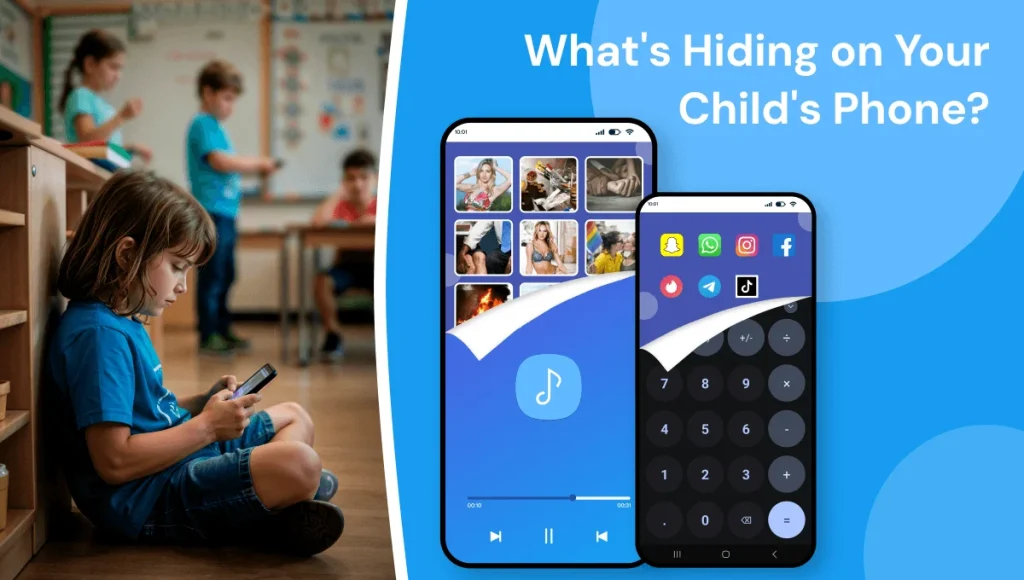
You check your child’s phone and everything looks normal — a calculator, a music app, a photo editor. But what if that calculator isn’t really a calculator? What if that music app is actually hiding hundreds of private photos, secret conversations, and a browsing history you’ve never seen?
Welcome to the world of vault apps, decoy apps, and hidden messaging tools — designed specifically to help kids hide things from their parents. (If you haven’t already, check our guide on social media apps that aren’t safe for kids.)
According to a 2024 Pew Research study, 46% of teens say they use the internet “almost constantly.” And a growing number of them are using secret apps to keep their digital lives private from the adults in their home.
This guide covers every type of hidden app your child might be using, how to spot them, and what to do about it.
What Are Vault Apps and Why Should Parents Care?
Vault apps are applications that look like everyday tools — calculators, note-taking apps, or music players — but are actually password-protected containers that hide photos, videos, messages, contacts, and even other apps.
They are specifically marketed to teens and young adults with taglines like “Hide your private life” and “Keep secrets safe.” Some have been downloaded millions of times from the Google Play Store and Apple App Store.
Why this matters: If your child is using a vault app, they are deliberately hiding digital activity from you. The content being hidden could range from innocent (embarrassing selfies) to dangerous (explicit photos, conversations with strangers, evidence of cyberbullying, or drug-related discussions). You can’t protect your child from dangers you can’t see.
Category 1: Vault Apps Disguised as Everyday Tools (The Most Common)
These are the most popular vault apps among teens. They look and function exactly like a regular calculator — but entering a secret passcode opens a hidden vault of photos, videos, and files.
1. Calculator Pro+ (Hidden SMS & Call Vault)
What it looks like: A fully working calculator app — almost identical to the default calculator on your phone. The app icon can even be hidden completely from the home screen.
What it actually does: Behind the calculator is a password-protected vault that hides text messages (SMS/MMS) and calls from specific contacts. Your child can have secret conversations that never appear in the phone’s regular messaging app or call log. It also offers free encrypted messaging between Calculator Pro+ users — with unlimited texts, photos, audio, video messages, and location sharing. All hidden messages are auto-backed up.
How to spot it: If your child has two calculator apps, one is almost certainly a vault. Open it and try entering numbers followed by “=” — if a login screen appears, you’ve found it. Also look for the app name “Calculator Pro+” in Settings → Apps, or check if your child receives messages from contacts you don’t recognize.
2. Hide It Pro (Disguised as an Audio Manager)
What it looks like: An “Audio Manager” app icon — looks like a volume control tool.
What it actually does: It works as a real audio manager on the surface. But if you long-press the “Audio Manager” title, it opens a hidden vault for photos, videos, files, and even other apps. All files are encrypted, it disappears from the recent apps list, and it can’t be tracked. It also offers cloud backup of hidden files and fingerprint lock.
How to spot it: Look for an app called “Audio Manager” that your child never uses for actual volume control. Try long-pressing the title bar — if a PIN screen appears, it’s Hide It Pro. Also check storage: an “audio manager” using hundreds of MBs is hiding content.
3. Private Photo Vault (Keepsafe)
What it looks like: A lock or key icon — but can be disguised with a custom icon.
What it actually does: Hides photos and videos behind a PIN, fingerprint, or face ID lock. The premium version includes a “Decoy Vault” feature (activated via a separate PIN) that shows a fake vault with innocent photos if a parent forces entry.
How to spot it: Search your child’s app store purchase history. Even if the app is hidden from the home screen, it appears in download history.
4. Calculator Vault: App Hider
What it looks like: Identical to the default phone calculator.
What it actually does: Hides apps, photos, videos, and has a built-in private browser. Some versions can clone social media apps (like a second Instagram or Snapchat account) that are invisible on the home screen.
How to spot it: Go to Settings → Apps → look for apps with unusually large storage sizes for what they claim to be. A “calculator” using 500MB+ of storage is not a calculator.
Category 2: Secret Messaging Apps
These apps let kids send messages that disappear, are encrypted, or are hidden behind fake interfaces. They are designed to leave no trace. For a deeper look at this growing threat, read our guide on anonymous chat apps and kids’ safety.
5. Telegram (Secret Chats)
What parents think it is: A messaging app like WhatsApp.
What kids use it for: Telegram’s “Secret Chat” feature uses end-to-end encryption with self-destructing messages. Messages can be set to auto-delete in as little as 1 second. Telegram also allows joining anonymous group chats with no phone number visible, and has channels that share explicit content, drug information, and pirated material. Parents can use KidsNanny’s Timeline to see when Telegram is installed or actively used.
Why it’s dangerous: The National Center for Missing & Exploited Children (NCMEC) has flagged Telegram repeatedly for insufficient moderation of child exploitation material. While Telegram scans public channels for known CSAM through a partnership with the Internet Watch Foundation (IWF), private chats and secret chats remain completely unscanned — unlike iMessage or WhatsApp. Learn more about this growing threat in our guide on AI-generated child abuse content (CSAM).
6. Signal
What parents think it is: A privacy-focused messaging app for adults.
What kids use it for: Signal’s “disappearing messages” feature deletes conversations automatically. The app also has a “Screen Security” setting (on both Android and iOS) that blocks screenshots within the app and hides Signal content from the app switcher. Kids use it when they want to have conversations that leave absolutely zero evidence on their device.
How to spot it: Look for a white speech bubble with a dashed outline on a blue background. If your teen has Signal installed, ask them who they’re messaging on it and why they chose it over regular texting.
7. Dust (formerly Cyber Dust)
What it does: Every message is automatically erased within 24 hours from both the sender’s and receiver’s phones. The “Blast” feature lets users broadcast messages to multiple contacts at once — all of which also auto-delete. The app alerts users if a screenshot is taken.
Why kids use it: To send messages they don’t want anyone to ever see — including parents, school administrators, or law enforcement.
8. CoverMe
What it does: A private messaging app with self-destructing messages, end-to-end encryption, and a built-in private vault for hiding photos, videos, and files. It also lets users create a disposable “burner” phone number for anonymous calls and texts.
Why it’s concerning: CoverMe combines two dangerous features into one app: secret messaging AND a hidden vault. The burner phone number feature means your child can communicate with people without using their real number — making it harder to trace conversations.
How to spot it: Look for a blue shield icon. Check if your child has phone numbers you don’t recognize in their contacts or call history.
Category 3: Hidden Browsers
These apps let kids browse the internet without leaving any trace in the phone’s regular browser history.
9. Firefox Focus / DuckDuckGo Private Browser
What they do: These are legitimate privacy browsers that automatically delete all browsing history, passwords, and cookies when closed. Every session starts fresh with zero history.
Why kids use them: To visit websites without any record appearing in Safari or Chrome history. If you check your child’s browsing history and it looks empty or suspiciously clean, a private browser may be the reason. Consider switching to a safe browsing app for kids instead.
10. Aloha Browser
What it looks like: A regular browser with a pastel icon.
What it actually does: Built-in free VPN that hides browsing activity from network-level monitoring. It also includes a media vault for downloading and hiding videos from any website. The VPN means even router-level parental controls won’t see what your child is accessing. A content filter like KidsNanny works at the device level, so it can block adult content even when a VPN is active.
Category 4: App Hiders and Dual-Space Apps
These apps don’t just hide content — they hide entire applications.
11. App Hider (Android)
What it does: Hides any app from the home screen and app drawer. The hidden apps can only be accessed through the App Hider interface, which itself can be disguised as a calculator or other innocent-looking app.
The result: Your child could have Instagram, Snapchat, TikTok, or dating apps installed on their phone — and you would never see them by looking at the home screen or app drawer. KidsNanny’s App Blocker can detect and block app hiders before they’re even installed, and sends you an alert when any new app is added to your child’s device.
12. Dual Space / Parallel Space
What they do: Create a clone of any app on the phone. Your child can run two Instagram accounts, two Snapchat accounts, or two WhatsApp accounts on the same device — one for you to see, one that’s private.
How to spot it: Check Settings → Apps for apps that appear twice, or look for apps with “[Clone]” or “(2)” in the name. Also check total storage usage — cloned apps double the storage footprint.
Category 5: Secret Social Media Apps
13. NGL (Anonymous Q&A)
What it does: NGL generates a unique link that users share on their Instagram Stories or bio. Anyone who clicks the link can send anonymous messages, which the user views inside the NGL app. The anonymity is the draw — but it’s also what makes it a vehicle for cyberbullying, hate speech, and sexual harassment.
Important update: In 2024, the FTC banned NGL from serving users under 18 — the first time the FTC required a company to block minors from an online service. However, enforcement is imperfect, and kids may still find ways to access it using fake birth dates.
The danger: Even with the ban, anonymous messaging apps remain popular among teens. If your child has NGL or similar anonymous Q&A apps installed, they may be receiving cruel anonymous messages with no way to identify the sender. According to Common Sense Media, anonymous apps consistently rank among the highest for cyberbullying incidents.
14. Sendit
What it does: Works with Snapchat to allow anonymous messages and “games” that often involve truth-or-dare style prompts about sexual topics, drug use, and personal secrets.
Why kids use it: Peer pressure. When everyone in the friend group is using it, not participating means being left out of conversations. Learn more about how peer pressure drives risky digital behavior in our guide on how cyberbullying impacts kids and teens.
Why kids use it: Peer pressure. When everyone in the friend group is using it, not participating means being left out of conversations. Learn more about how peer pressure drives risky digital behavior in our guide on how cyberbullying impacts kids and teens.
15. BeReal (with a twist)
What parents think: A harmless photo-sharing app that takes one photo per day.
What parents miss: BeReal’s daily notifications create social pressure to post immediately, and kids sometimes share location-revealing photos without thinking. The app shows who is “late” posting — creating a culture of constant phone availability that contributes to unhealthy screen time habits. Comments are limited to friends, but “RealMojis” (photo reactions) and the “Friends of Friends” feed can expose children to content from people they don’t know directly.
16. Wizz (The “Tinder for Teens”)
What it does: A swipe-based app where users connect with strangers based on age and interests. Safety organizations and media outlets have called it “Tinder for teens” due to its swipe-to-match interface targeting young users.
Why it’s dangerous: Despite claiming a 13+ age requirement, there is minimal age verification. The app has been linked to sextortion schemes and predatory behavior, and has been removed and reinstated from app stores multiple times. If you find Wizz on your child’s phone, take it seriously. Using KidsNanny’s GPS location tracker alongside app monitoring gives you a complete picture of who your child is connecting with and where they are.
How to Find Hidden Apps on Your Child’s Phone
On iPhone (iOS):
For full setup help, see our iOS parental control install guide.
- Check the App Library: Swipe left past all home screens to the App Library. Every installed app appears here, even if hidden from the home screen.
- Search Spotlight: Swipe down from the middle of the home screen and type “vault,” “calculator+,” “secret,” “hide,” or “private.” Hidden apps will appear in search results.
- Check Screen Time: Go to Settings → Screen Time → See All Activity. This shows every app used, including hidden ones, and how much time was spent on each.
- Check App Store purchases: Open App Store → tap your profile picture → Purchased. Even deleted apps appear in purchase history. Note: kids can hide purchases — check Settings → Apple ID → Media & Purchases → View Account → Hidden Purchases for apps they’ve tried to conceal.
- Look for unusual storage: Settings → General → iPhone Storage. Sort by size. Any “calculator” or “note” app using hundreds of MBs is suspicious.
- Check incognito mode usage: If Safari or Chrome history is completely empty, your child may be using private browsing. Learn how to block it.
On Android:
For full setup help, see our Android parental control install guide.
- Check all apps: Settings → Apps → See all apps. This shows every installed app, including those hidden from the home screen or app drawer.
- Check storage sizes: In the same menu, sort by size. Vault apps disguised as utilities will have disproportionately large storage usage.
- Check Google Play history: Open Google Play Store → tap your profile → Manage apps & devices → Manage. Switch to “Installed” or “Not installed” to see all apps ever downloaded.
- Look for duplicate apps: If you see two calculators, two browsers, or two versions of any app — one is likely a vault or clone.
- Check app permissions: Settings → Security & Privacy → Permission Manager (path may vary by manufacturer). A “calculator” that has access to camera, microphone, contacts, and storage is not a real calculator.
- Check for anonymous chat apps: Look for apps like Telegram, Signal, Dust, or CoverMe that your child may be using for secret conversations.
Pro Tip: Use KidsNanny’s Screen Scanner to automatically detect hidden apps, vault apps, and suspicious activity on your child’s device. The AI-powered scanner identifies apps that disguise themselves as innocent tools — so you don’t have to manually search through every app. App Blocking lets you block vault apps and app hiders entirely, and Insights shows you which apps your child uses most — including ones hidden from the home screen.
What to Do If You Find a Hidden App
Finding a vault app on your child’s phone can feel alarming. But before you react, here’s the approach child safety experts recommend:
1. Don’t panic or immediately confront
Reacting with anger will make your child more secretive, not less. Take time to understand what you’re looking at before starting a conversation.
2. Check what’s inside (if possible)
If you can access the vault, review the content. Are they hiding embarrassing-but-harmless selfies? Or explicit photos, conversations with unknown adults, or evidence of cyberbullying? The contents determine the severity of your response.
3. Have an honest conversation
Ask open-ended questions: “I noticed this app on your phone — can you tell me about it?” Focus on understanding why they felt the need to hide things, not on punishing them for doing it.
4. Set clear boundaries
Explain that vault apps and hidden browsers are not allowed on their device. Not as a punishment — but because you need visibility into their digital life to keep them safe. Frame it as protection, not surveillance.
5. Use monitoring tools
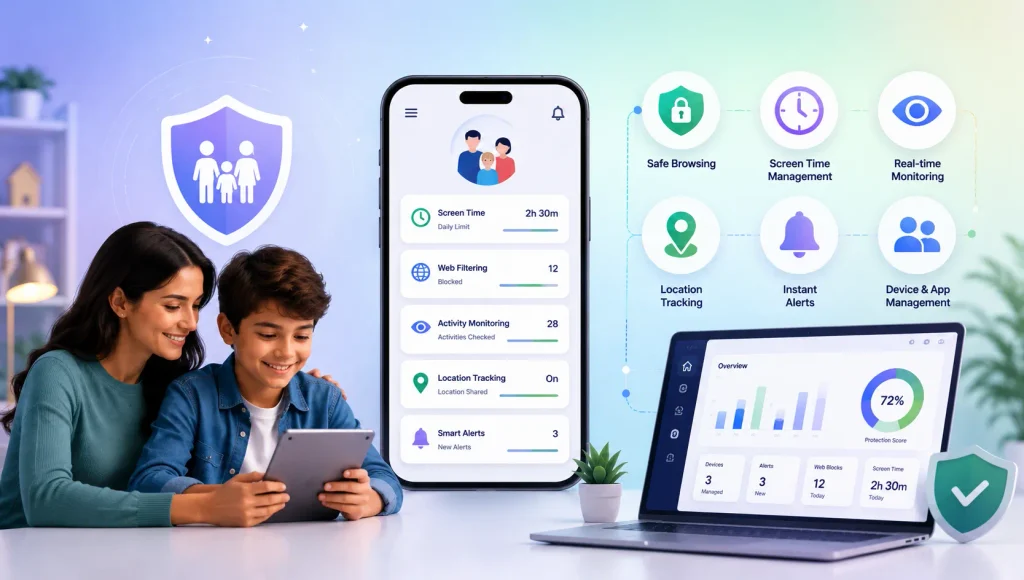
Manual phone checks only work in the moment. Kids reinstall hidden apps quickly. A parental control app like KidsNanny provides continuous monitoring — screen time reports, content filtering, app install alerts, and web history tracking — so you don’t have to manually search their phone every day.
Age-by-Age Guide: What to Watch For
| Age Group | Common Hidden Apps | What They’re Hiding | Recommended Action |
|---|---|---|---|
| 8–10 | Private browsers, YouTube alternatives | Inappropriate videos, gaming content parents restrict | Full device monitoring, no private browsers — consider a safe browser like Browsely |
| 11–13 | Vault apps (calculator type), secret social media accounts | Social media accounts parents don’t know about, embarrassing photos, early romantic conversations | Regular phone checks + parental control app. Discuss why hiding is a red flag. |
| 14–16 | Encrypted messaging (Signal, Telegram), app hiders, dual-space apps | Romantic/sexual conversations, substance-related discussions, photos they’d be embarrassed by | Monitoring with transparency. Explain that monitoring isn’t about distrust — it’s about safety. |
| 17–18 | VPN browsers, encrypted everything, cloned social media | Everything from dating apps to financial transactions | Transition to trust-based monitoring. Focus on open communication rather than app-level control. |
5 Signs Your Child Is Using Hidden Apps
- They won’t let you touch their phone. Extreme protectiveness over a device — turning it face-down, taking it everywhere (even the bathroom), panicking when you pick it up — is the #1 warning sign.
- Suspiciously clean browsing history. No browser history at all is more suspicious than a full one. Kids who use private browsers have zero history by design.
- Unusually high storage usage. If the phone is “full” but you can only see a few apps and photos, hidden vaults are using the storage.
- Multiple versions of the same app. Two calculators. Two note apps. Two photo galleries. One is real — the other is a vault.
- They know too much about privacy tools. If your 12-year-old is talking about VPNs, end-to-end encryption, or “incognito mode,” they’ve been researching how to hide their activity.
Important: Not every child using a privacy app is in danger. Teens naturally seek privacy as they develop autonomy. The goal is not to eliminate all privacy — it’s to ensure they are not being exploited, harassed, or exposed to harmful content. Balance monitoring with trust.
Stop Hidden Apps Before They Become a Problem
Your child will always be one step ahead if you rely on manual phone checks. They reinstall vault apps in seconds. They switch to new secret messaging tools the moment you find the old one. You need something that works even when you’re not looking.
KidsNanny is an AI-powered parental control app that catches what manual checks miss — automatically, in real time.
Here’s what changes when you set up KidsNanny:
| Without KidsNanny | With KidsNanny |
|---|---|
| You find a vault app days later — after the damage is done | Instant alert the moment a new app is installed |
| Browsing history is empty — kid used a private browser | Full browsing history across all browsers, including incognito |
| You don’t know what’s inside hidden apps | AI Screen Scanner detects harmful content inside any app in real time |
| No idea how much time your kid spends on secret apps | Screen time reports show every app used — even hidden ones |
| You block one app, they download another | Content filter + app blocker blocks categories, not just individual apps |
| You check YouTube history — it’s been cleared | YouTube Control logs watch history and blocks unsafe channels |
| You find something dangerous but the phone is with your child | Instant Lock — remotely lock their device with one tap |
Set it up in 5 minutes:
- Download KidsNanny on your phone (iOS guide | Android guide)
- Install KidsNanny on your child’s device
- Connect using pairing code
- Set your rules — block vault apps, enable screen scanning, turn on alerts
- Get weekly insights and real-time location from one dashboard
Start your free 7-day trial — no credit card required. No ads. Works on Android, iOS, and macOS.