



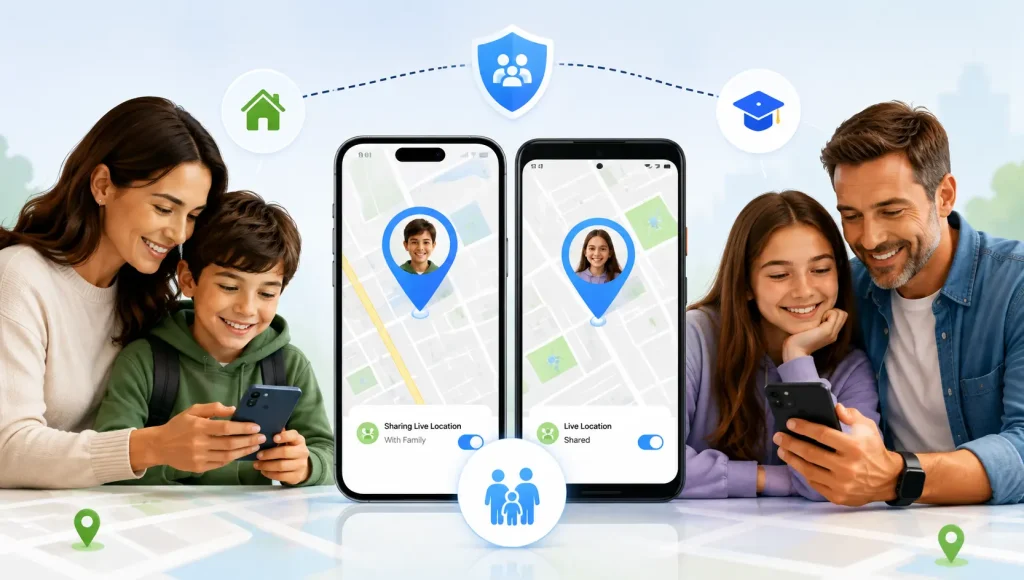
When your child is late coming home or doesn’t answer a call, it’s normal for a parent to wonder, “Where are they?”
There may be a simple explanation. Their phone could be on silent, they may be in class, traveling with friends, or simply haven’t seen the message yet. But when you can’t reach someone, knowing their location can provide valuable reassurance.
Fortunately, both iPhone and Android offer ways to share your location with trusted family members. You can share your current location for a quick update or use live location sharing when someone is traveling.
This guide explains how to share your location with family on iPhone and Android, how to share between different devices, and how parents can use location sharing safely.
What Is Location Sharing?
Location sharing lets you show a trusted person where you are using your smartphone.
There are two common types:
- Current location: Shows where you are when you send the location.
- Live location: Continues updating your location for a selected period.
For example, if your teenager texts, “I’m on my way home,” sharing their live location can help you see their progress without repeatedly calling them.
How to Share Your Location on iPhone
iPhone users can share their location using Apple’s built-in Find My service.
Share Your Location With Find My
- Open the Find My app.
- Tap the People tab.
- Select Add or the option to share your location.
- Choose the family member or trusted contact.
- Follow the instructions to send the location-sharing invitation.
- Select the sharing duration when prompted.
Before doing this, make sure Location Services are enabled:
Settings → Privacy & Security → Location Services
You can also review which apps are allowed to access your location.
Share Your Location Through Messages
If you simply need to tell a family member where you are, you can also share your location through a conversation in Apple’s Messages app when the relevant location-sharing options are available.
This can be useful for simple situations such as:
“I’m at the mall. I’ll send you my location so you can find me.”
How to Share Your Location on Android
Android users can share their location using services such as Google Maps.
Share Your Location With Google Maps
- Open Google Maps.
- Tap your profile picture or account icon.
- Select Location sharing.
- Choose the person you want to share your location with.
- Select how long you want to share it.
- Confirm the sharing option.
Make sure your phone’s location setting is enabled and that Google Maps has the necessary location permission.
Android settings can vary between manufacturers, so the exact menu names may be slightly different on Samsung, Google Pixel, and other Android devices.
Can You Share Location Between iPhone and Android?
Yes.
Your family doesn’t need to use the same type of phone to share locations.
For example, a parent using an iPhone can share location with a teenager using Android through a cross-platform service such as Google Maps. The same applies in the opposite direction.
This makes cross-platform location sharing particularly useful for families with a mix of iPhone and Android devices.
Current Location vs. Live Location
Knowing the difference can help you choose the right option.
| Type | What it means | Useful for |
| Current location | Shows your location at the time you send it | Quick updates |
| Live location | Updates as you move | Travel, walking home, meeting family |
| Location history | Shows previous location information when supported | Reviewing past movements |
| Geofence alert | Alerts when a device enters or leaves an area | Home, school, or other important places |
You don’t always need continuous location sharing.
If you’re meeting someone at a restaurant, sending your current location may be enough. If your child is traveling home alone, live location sharing may be more useful for that journey.
What If Your Child Doesn’t Answer Your Call?
This is one of the most practical situations where family location sharing can help.
Suppose your teenager normally gets home at 5:00 PM. It’s now 5:20 PM, and they haven’t answered your call.
Instead of immediately assuming something is wrong, location information may provide some context.
You might see that:
- They are still at school.
- They are traveling home.
- They have reached a friend’s house.
- Their location hasn’t updated recently.
There can be many harmless reasons for a missed call, so location information should be treated as one piece of information, not proof that everything is fine or something is wrong. If you have a genuine safety concern, continue trying to contact your child and take appropriate action based on the circumstances. If your family prefers a quick confirmation instead of continuous location sharing, a check-in can be another simple way for a child to let a parent know where they are.
How Parents Can Use Location Sharing Safely
Location sharing can be useful, but families should agree on how and when it will be used.
Talk About It With Your Child
Especially with teenagers, explain why you’re using location sharing.
For example: “We use location sharing so we can find each other when we’re traveling or when plans change.”
This creates a clear safety purpose instead of making the child feel secretly monitored.
Share With Trusted People
A location can reveal sensitive information about where someone lives, studies, works, or spends time.
Only share it with people you trust.
Use Temporary Sharing When Possible
You don’t always need to share your location indefinitely.
Temporary sharing can be appropriate when:
- Walking home
- Traveling
- Meeting someone
- Attending a crowded event
- Going somewhere unfamiliar
Review Location Permissions
Regularly check which apps can access your location and remove permissions that are no longer necessary.
What If Parents Want More Than Basic Location Sharing?
Built-in location sharing is useful when a family simply wants to know where someone is.
Parents may need additional tools when they want broader family safety features such as live location, location history, check-ins, or geofence alerts.
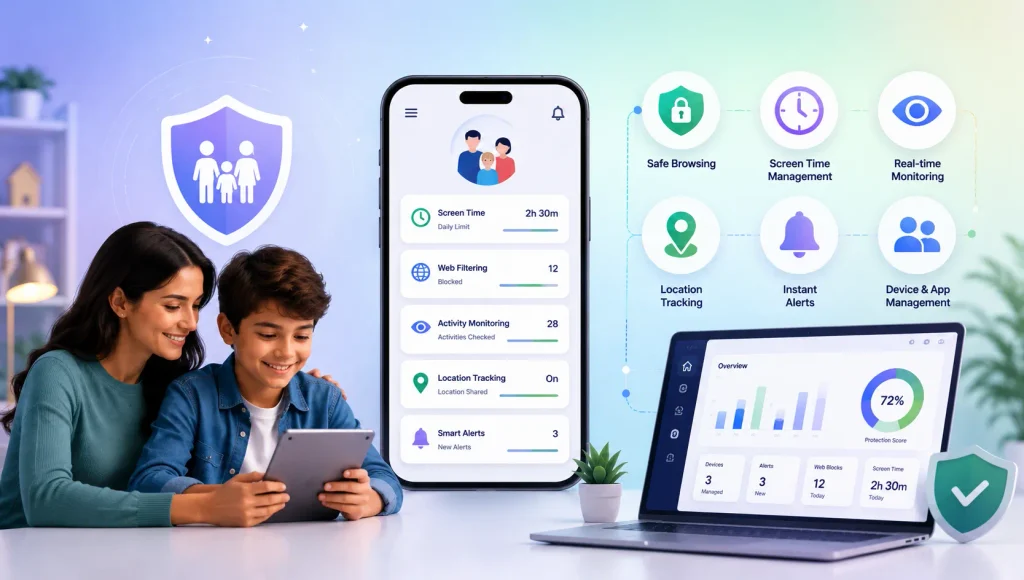
For families looking beyond basic location sharing, a parental control app can provide additional tools such as location tracking, check-ins, and other family safety features alongside everyday digital safety controls. KidsNanny’s location tracker provides another option for families who want dedicated location features.
The right approach depends on your child’s age, your family’s routine, and how much location information is actually necessary.
Why Isn’t a Family Member’s Location Updating?
A location may not update correctly for several reasons:
- The phone battery is low or dead.live location
- Location Services are turned off.
- The app doesn’t have location permission.
- The phone has a weak internet connection.
- GPS reception is poor.
- Battery-saving settings restrict background activity.
- The phone is switched off.
Location information isn’t always perfectly precise, particularly indoors or in areas with weak GPS or network coverage.
If a location hasn’t updated, check the phone’s battery, connection, permissions, and last update before assuming something is wrong.
How to Stop Sharing Your Location
You can normally stop location sharing through the same service you used to start it.
For example, iPhone users can manage sharing through Find My, while Android users can manage sharing through services such as Google Maps.
If you shared your location temporarily, it may automatically stop when the selected period ends.
It’s a good habit to review your location-sharing list regularly and remove people who no longer need access.

Final Thoughts
When a family member doesn’t answer a call or message, location sharing can provide useful context and reassurance.
iPhone users can use Find My, while Android users can use services such as Google Maps. Families with different devices can also use cross-platform location sharing.
For parents, the goal shouldn’t be to monitor every movement. A better approach is to use location sharing as part of a broader family-safety routine built around trust, communication, privacy, and appropriate boundaries.
When used responsibly, a simple location check can sometimes turn “Where are they?” into a little more peace of mind.