




Screen Time Control
Build healthier digital habits without daily arguments.
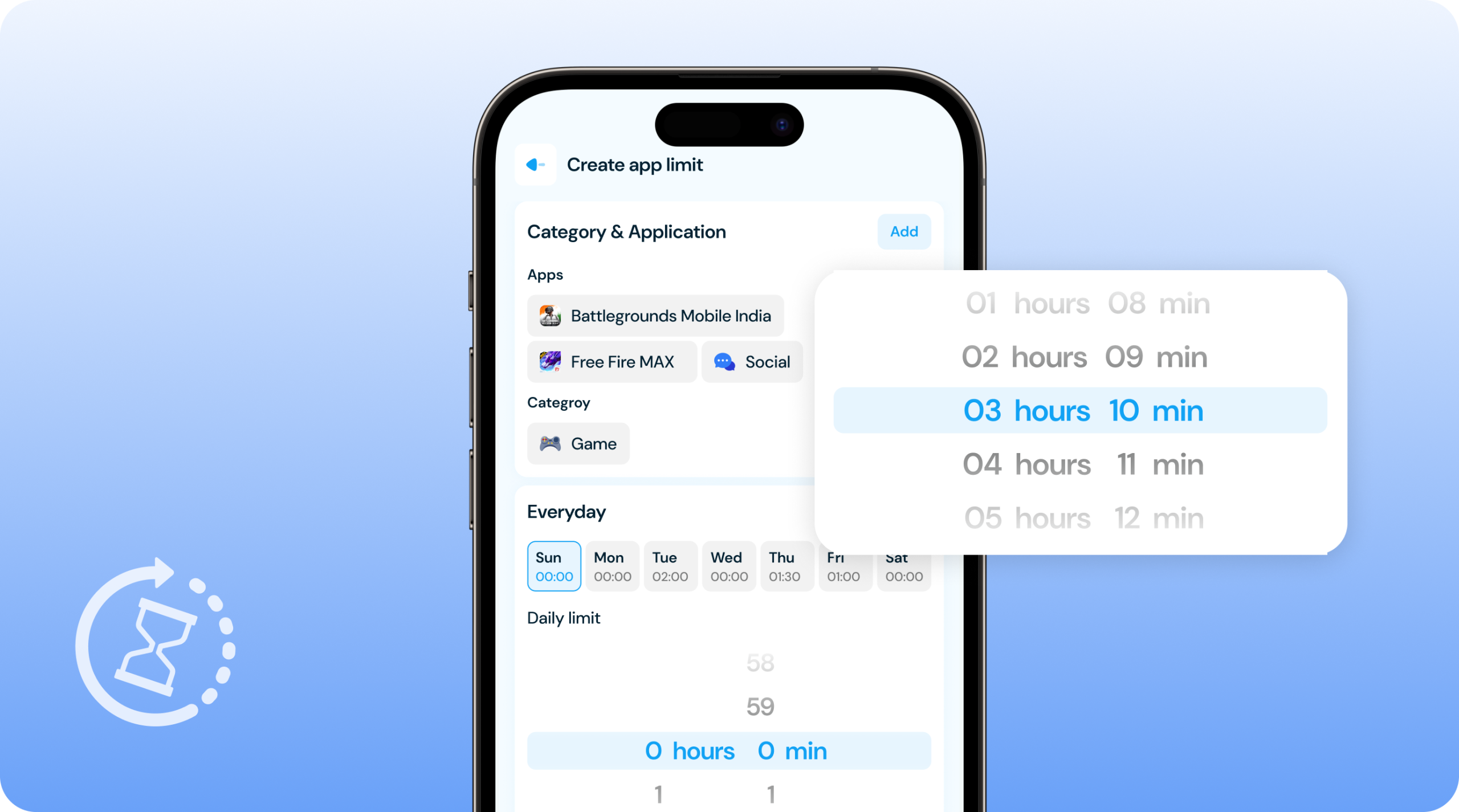
Monitor your child’s app usage in real time, set daily screen time limits, schedule downtime for study or sleep, and control access to apps that matter most. Allow essential apps anytime, block distractions instantly, and manage app categories for balanced, safe device use.
Check Screen Time Usage
Get complete visibility into how your child uses their device every day.
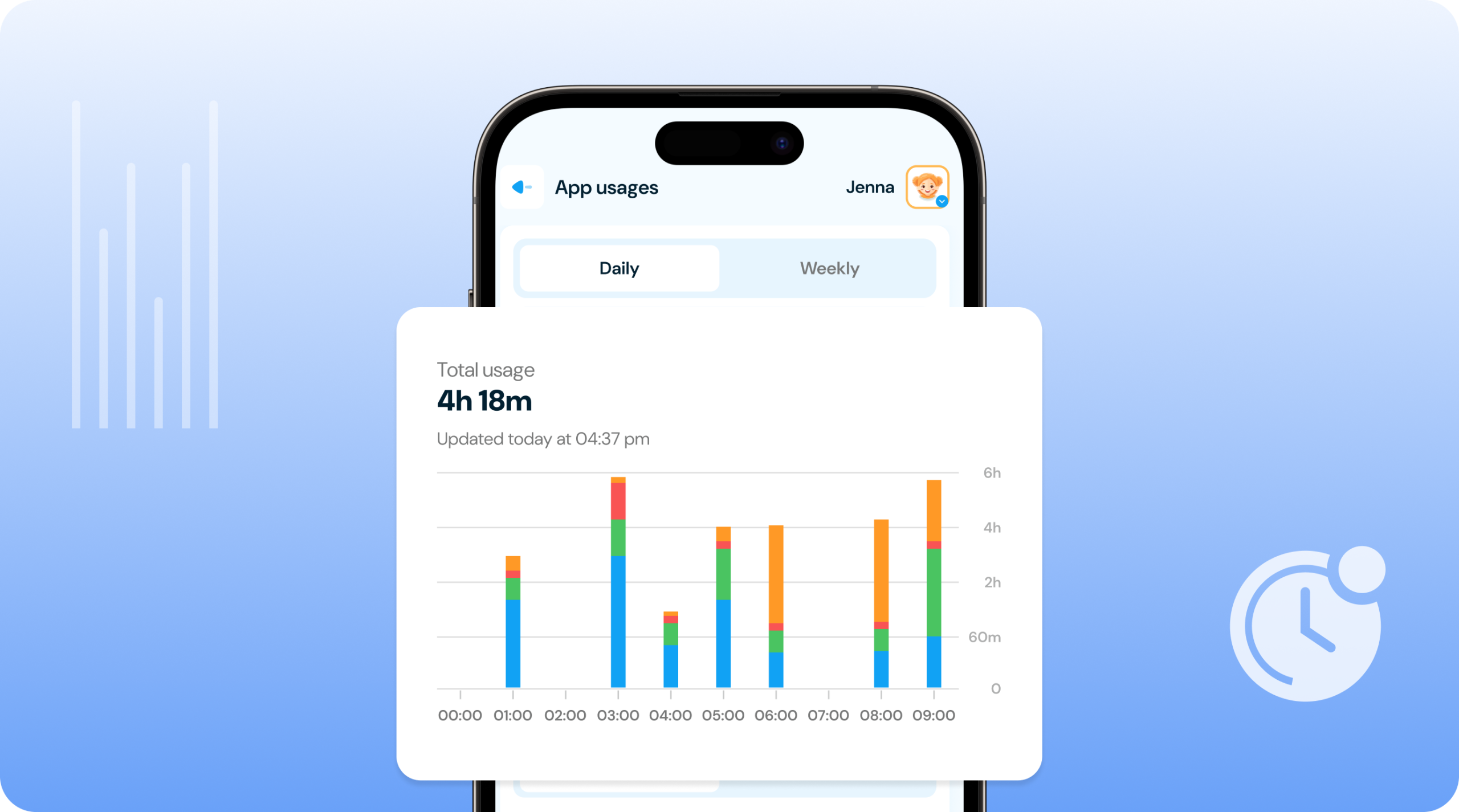
✓ Access comprehensive daily, weekly, and monthly activity reports showing exactly how much time your child spends on their device.
✓ View which apps capture the most attention with detailed rankings that reveal their top used applications and time spent on each.
✓ Identify behavioral patterns and unusual activity by analyzing screen time trends across different times and days.
✓ Understand device habits through category breakdowns separating social media, games, education, and entertainment usage.
Set Daily Device Limits
Manage total daily screen exposure with one simple setting.
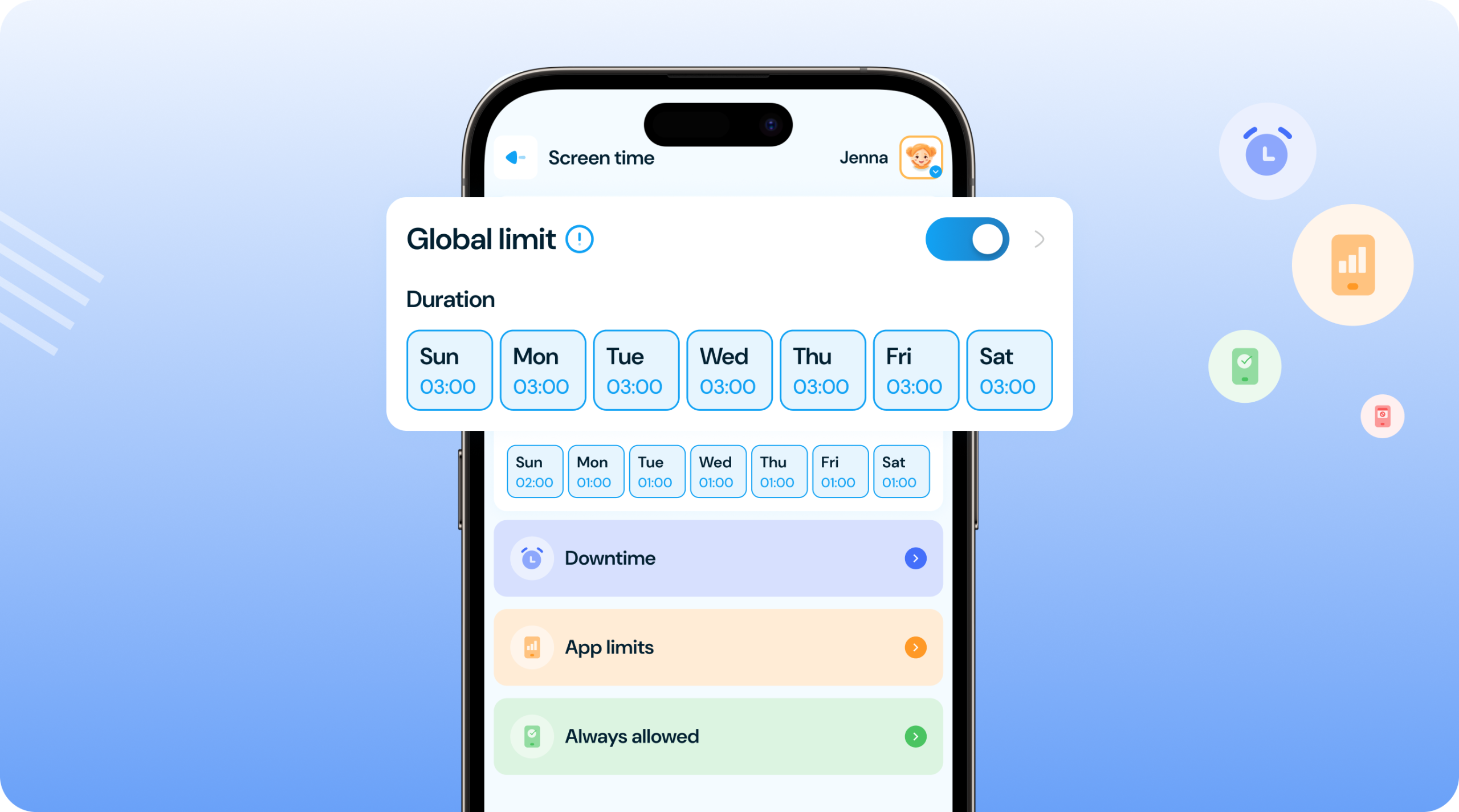
✓ Cap total device time across all activities to prevent excessive use and encourage offline engagement throughout the day.
✓ Automatic enforcement without constant supervision as the device locks when daily time runs out, teaching self-awareness.
✓ Customize limits based on age and maturity with different allowances that grow with your child’s responsibility level.
✓ Maintain consistency while allowing flexibility by granting temporary extensions for homework, special events, or earned rewards.
Schedule Smart Downtime
Create device-free moments that matter for your family’s wellbeing.
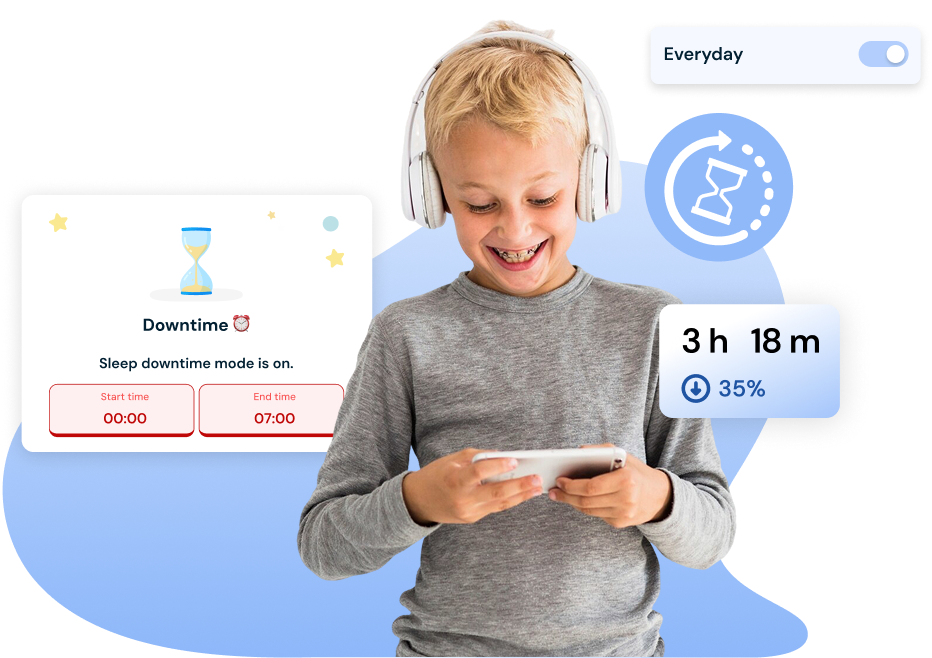
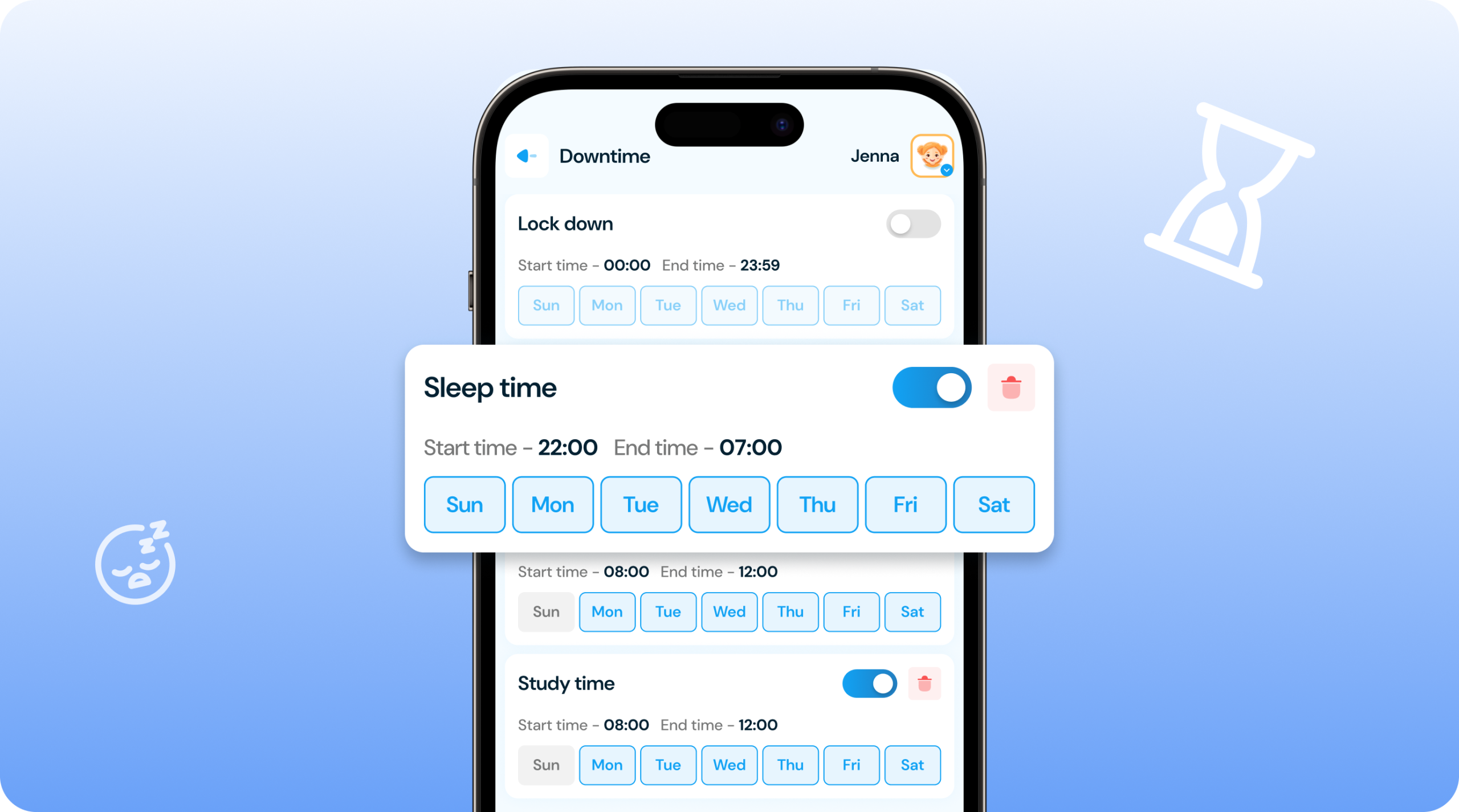
✓ Block all device access during critical hours like bedtime, homework time, or family dinners to ensure focused, quality time.
✓ Configure multiple schedules for different needs with separate rules for school nights, weekends, and special occasions.
✓ Enforce healthy sleep routines automatically by restricting late-night device use that interferes with rest and development.
✓ Teach time management through predictable boundaries that help children understand when devices should be set aside.
Control Individual App Usage
Control specific applications to balance digital consumption.
✓ Target individual apps with precise time restrictions limiting high-distraction apps like games or social media to appropriate durations.
✓ Manage entire categories with single rules by setting combined limits for all social apps, entertainment apps, or gaming apps together.
✓ Adapt limits to match your weekly routine with stricter weekday controls and more relaxed weekend allowances.
✓ Progressive notifications keep kids informed as they approach limits, encouraging them to wrap up activities naturally.
How to Screen Time Use for Kids?
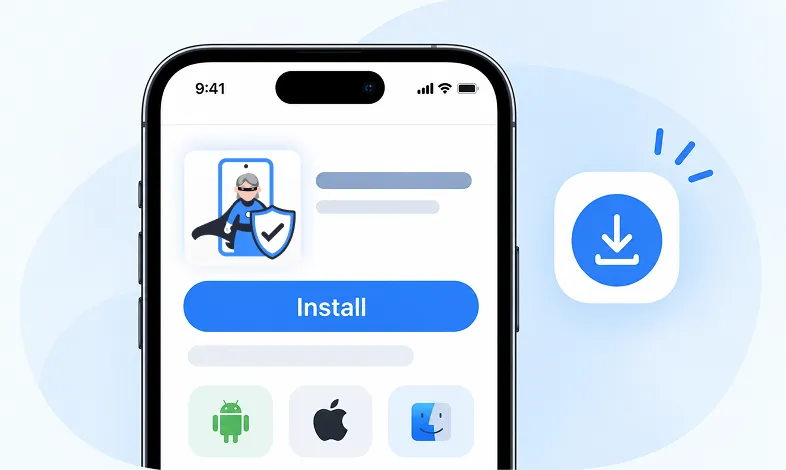
Step 1 Install KidsNanny
Download KidsNanny App from Google Play Store or App Store on the parent’s phone
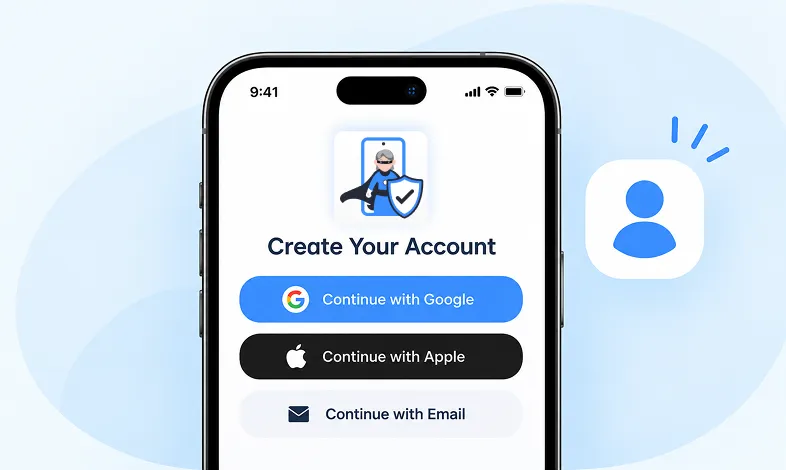
Step 2 Create your Account
Create account for KidsNanny or login with an Google, Apple and Email id.
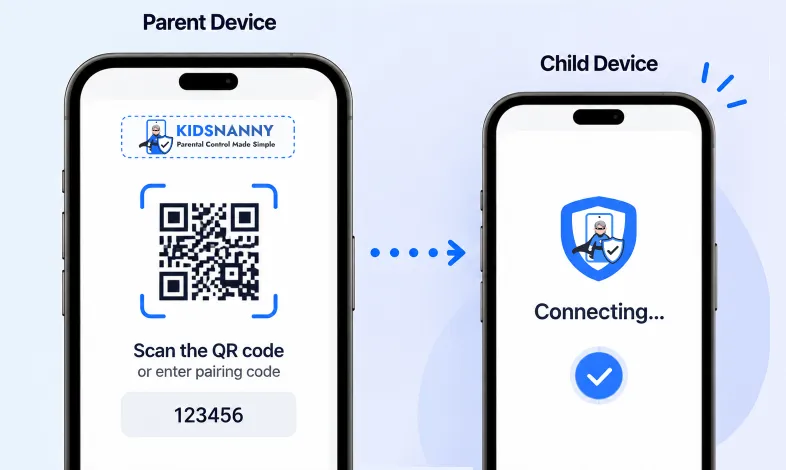
Step 3 Connect Kid's Device
Install KidsNanny App on your kid’s device. Then, enter the paring code to connect device.
More Parental Control Features
Real time Alerts
Receive instant alerts for harmful content detection, location activity, and child safety events.
View AlertsLocation Tracker

Real-time GPS tracking to know where your child is at all times with geofencing alerts.
Enable Location Tracker

Camera Shield
Control camera access and monitor photo activities to ensure your child's privacy and safety.
Enable Camera Shield

Screen Scanner
Capture screenshots of your child's device activity to review what they're viewing.
Enable Screen Scanner

WhatsApp Shield
Monitor WhatsApp messages and protect your child from inappropriate conversations and strangers.
Enable WhatsApp Tracker

YouTube Control
Monitor watch history, block inappropriate channels, and set viewing limits on YouTube.
Try YouTube Control

Content Filter
Block harmful websites and inappropriate content across all apps and browsers.
Enable Content Filter

Screen Time Limit
Set daily usage limits and schedule screen-free times for healthier device habits.
Set Screen Time

App Blocking
Block or restrict access to specific apps and games based on age-appropriateness.
Block Harmful Apps

Instant Lock Down
Remotely lock your child's device instantly when needed for immediate control.
Enable Instant Lock Down

Web History & Blocking
Track browsing history and block dangerous or inappropriate websites in real-time.
View Web History

Insights & Statistics
View detailed analytics and reports on your child's digital behavior and app usage patterns.
View Usage & Monitor

Task & Rewards
Create tasks and chores with reward systems to encourage positive behavior and responsibility.
Create TaskTrusted by Parents Worldwide
Kim Parker
This app helps me track my kid’s location with geofencing and location tracking. I can monitor web history and block unsafe sites—definitely a must-have for parents!
Rik Matthews
KidsNanny helps monitor screen time, block apps, track web activity, and follow location with geofencing. It's user-friendly, though charts need slight improvement.
Ashley Brown
Our family finds KidsNanny an incredible asset. Its powerful features and intuitive interface make managing screen time easy. The check-in feature gives us peace of mind by tracking our child’s movements.
Michael Johnson
KidsNanny features an intuitive and user-friendly interface, making it easy for parents to navigate and access essential features. With simple setup and configuration, you can start monitoring your child's digital activities in minutes.
David Singh
This app is incredibly helpful in keeping track of my kid's whereabouts, thanks to features like geofencing and location tracking. Additionally, I can easily monitor their web history which has been super beneficial. Definitely a must-have for any parent.!!
Maria Hernández
The screen time management feature helps me set healthy limits for my child's device use. The app's check-in and live location features provide a safe environment. A must-download for every concerned parent.
Emily Smith
I like to have the opportunity to see anything happening on my kid's phone - when the phone was used, sites visited, web searches, videos watched! Really amazing!
Hiroshi Tanaka
The best parental control apps, which allow for a good level of control and flexibility,can help you monitor your children's activity across social media. And still giving your family the freedom to explore the digital world, give the benefits of added safety nets.
Jean Dupont
Excellent app to monitor Kids mobile usage. Have control on screen time usage and their effective usage of device for their development.. Caring parents should definitely try it.
Sarah Thompson
Thank you for this amazing product. It is very crucial for the security and privacy of us as children and also for parents. It has enhanced our child's protection by productive tracking system. The overall experience is great to have.
Kim Parker
This app helps me track my kid’s location with geofencing and location tracking. I can monitor web history and block unsafe sites—definitely a must-have for parents!
Rik Matthews
KidsNanny helps monitor screen time, block apps, track web activity, and follow location with geofencing. It's user-friendly, though charts need slight improvement.
Ashley Brown
Our family finds KidsNanny an incredible asset. Its powerful features and intuitive interface make managing screen time easy. The check-in feature gives us peace of mind by tracking our child’s movements.
Michael Johnson
KidsNanny features an intuitive and user-friendly interface, making it easy for parents to navigate and access essential features. With simple setup and configuration, you can start monitoring your child's digital activities in minutes.
David Singh
This app is incredibly helpful in keeping track of my kid's whereabouts, thanks to features like geofencing and location tracking. Additionally, I can easily monitor their web history which has been super beneficial. Definitely a must-have for any parent.!!
Maria Hernández
The screen time management feature helps me set healthy limits for my child's device use. The app's check-in and live location features provide a safe environment. A must-download for every concerned parent.
Emily Smith
I like to have the opportunity to see anything happening on my kid's phone - when the phone was used, sites visited, web searches, videos watched! Really amazing!
Hiroshi Tanaka
The best parental control apps, which allow for a good level of control and flexibility,can help you monitor your children's activity across social media. And still giving your family the freedom to explore the digital world, give the benefits of added safety nets.
Jean Dupont
Excellent app to monitor Kids mobile usage. Have control on screen time usage and their effective usage of device for their development.. Caring parents should definitely try it.
Sarah Thompson
Thank you for this amazing product. It is very crucial for the security and privacy of us as children and also for parents. It has enhanced our child's protection by productive tracking system. The overall experience is great to have.
Screen Time FAQs
What is App Usage?
App Usage delivers in-depth analytics about your child’s device activity, providing daily and weekly breakdowns by individual applications and usage categories.
How can I monitor my child's device usage?
Open the Insights section in your parent app to access comprehensive reports displaying all device activity, app usage, and time statistics.
How can I track weekly usage?
Enable the weekly view toggle in the upper right corner of your Insights dashboard to see seven-day usage summaries and trends.
Why is app usage not being tracked?
Confirm that you’ve granted all necessary permissions for app usage monitoring on your child’s device during the setup process.
How to set Global App Limit?
Global App Limit establishes a total daily time allowance that restricts all device access once the maximum hours are consumed.
Why does an App Limit not work?
Check that the App Limit is activated, proper permissions are enabled, the app isn’t listed under Always Allowed, and no bonus time was recently granted.
How to Add/Modify Downtime?
Open your parent dashboard, select Screen Time, choose Downtime, tap Add New, configure your schedule with start time, end time, and active days, then save.
Why is Downtime not running?
Verify that Downtime is turned on, the schedule is current, required system permissions are enabled, and the app isn’t exempted in Always Allowed settings.