





Task and Rewards
Make Screen Time Fun & Balanced!
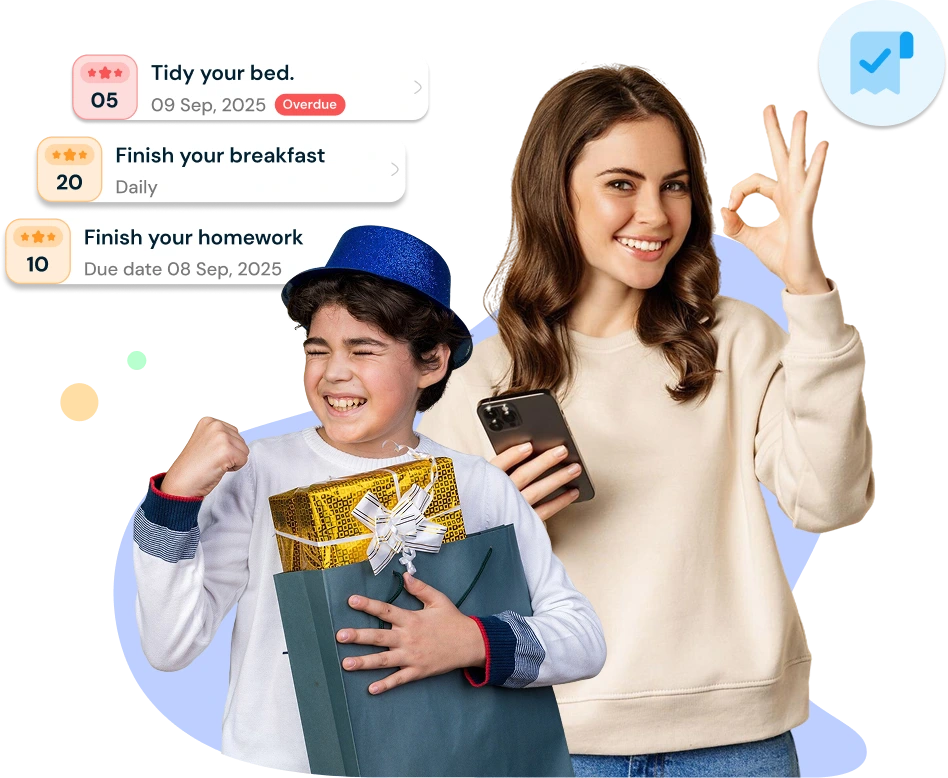
Turn screen time into a positive experience with KidsNanny’s new Task feature. Parents can now set healthy goals, reward good behavior, and teach kids responsibility—all while keeping screen usage under control.
👉 Create custom tasks.
👉 Kids earn points for completing them.
👉 Redeem points for extra screen time.
ake Screen Time Fun & Balanced!
How the Task Feature Works
The Task feature in KidsNanny is designed to encourage better habits and smarter screen use. It’s simple, effective, and fun:
1. Parents Create Tasks: Example: “No screen 30 minutes before bedtime” or “Read for 15 minutes.”
2. Kids Complete Tasks: When kids finish a task, they mark it as complete in their dashboard.
3. Parents Approve & Reward: Parents review completed tasks and approve them.
4. Earn Points = Extra Screen Time: Every 1 point equals 1 extra minute of app time—perfect motivation for kids to follow rules.
✨ This way, screen time becomes a reward for healthy habits, not a battle.
How Parents Can Create a Task
Creating a task is quick and easy from the parent dashboard:
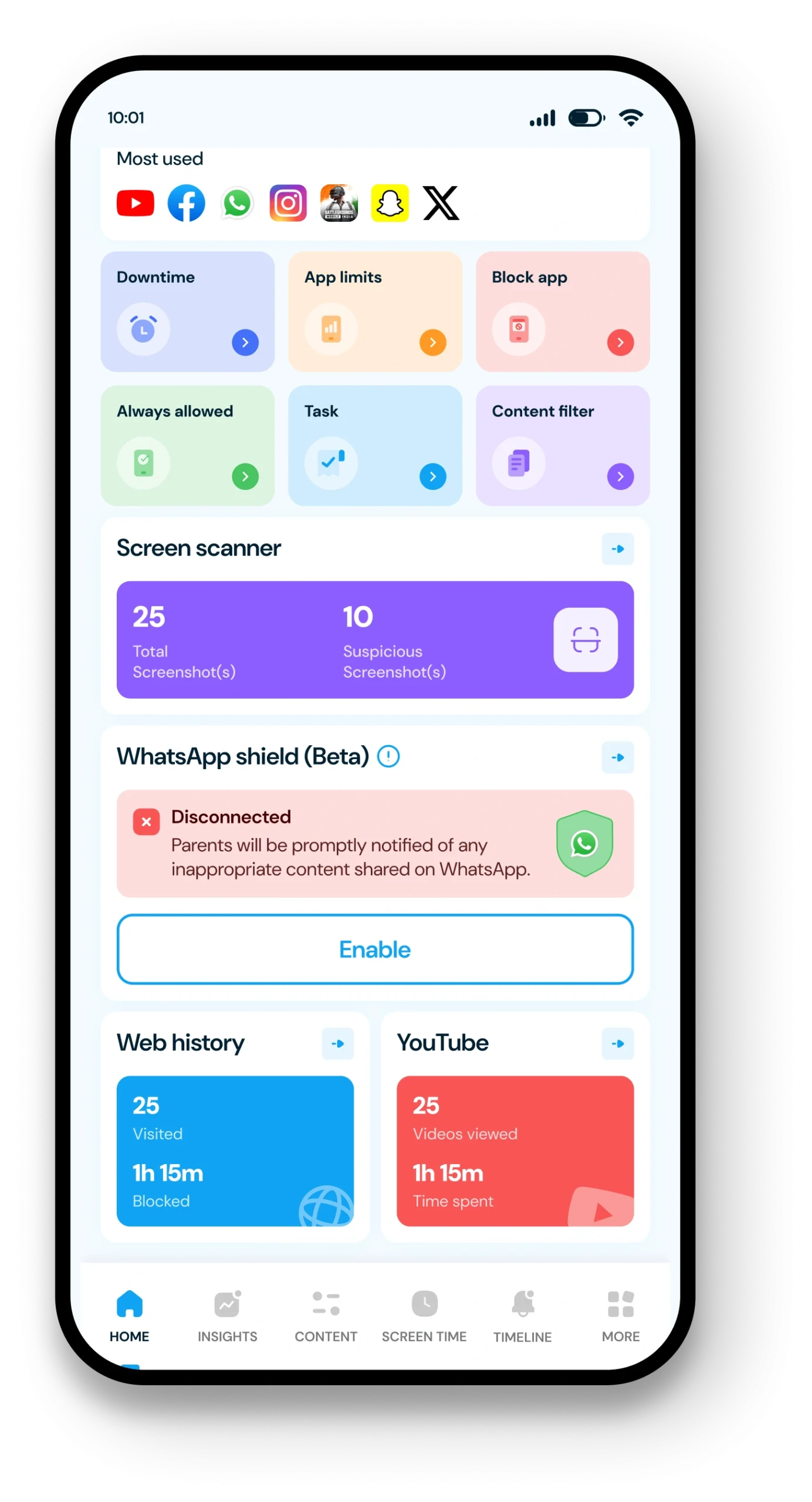
📌 Go to the Task section in your KidsNanny app.
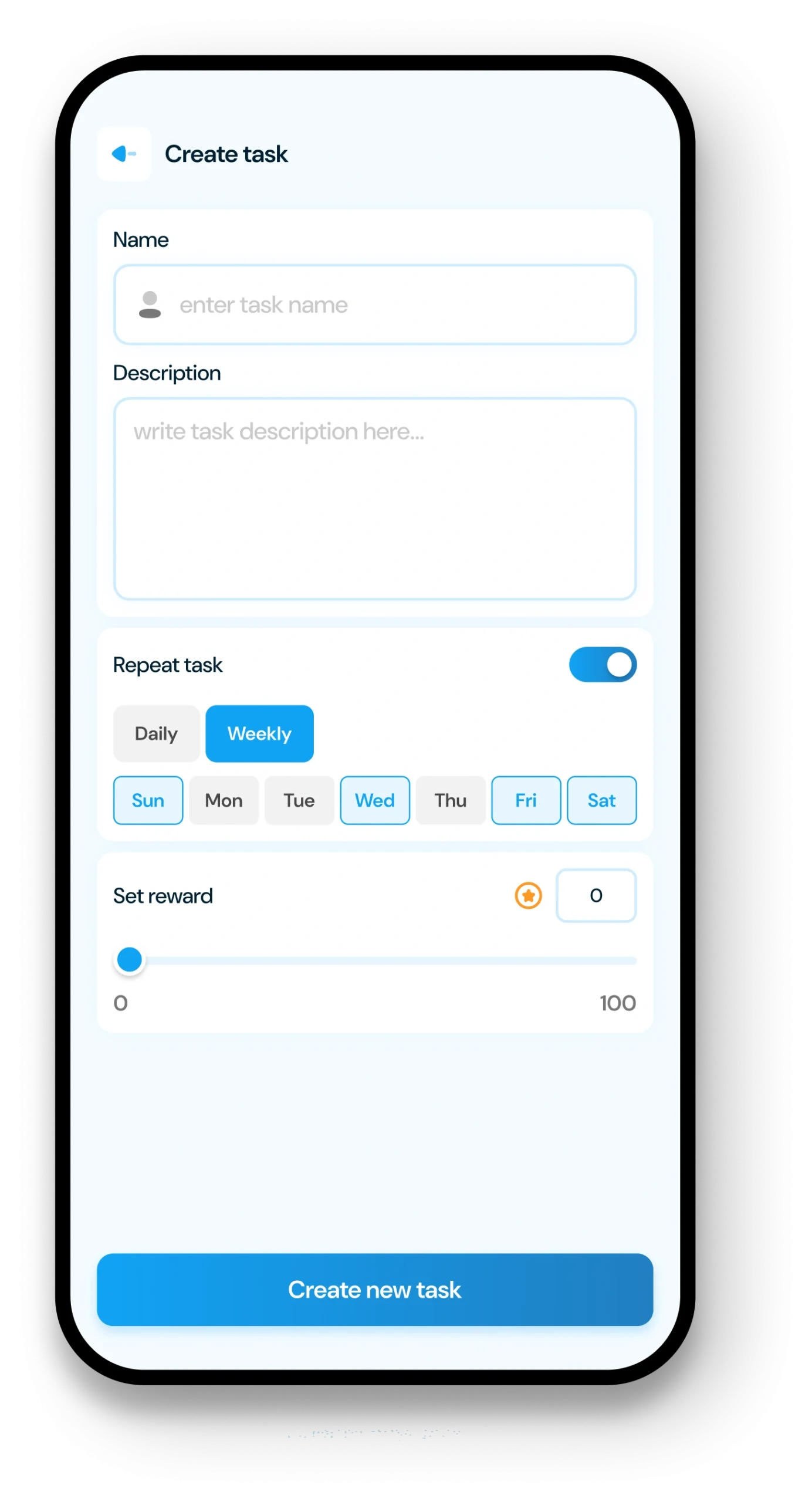
📌 Add a new task (e.g., “Finish homework before TV” or “Practice spelling”).
📌 Set points for the task.
📌 Save & assign it to your child’s profile.
How Kids See & Submit Tasks
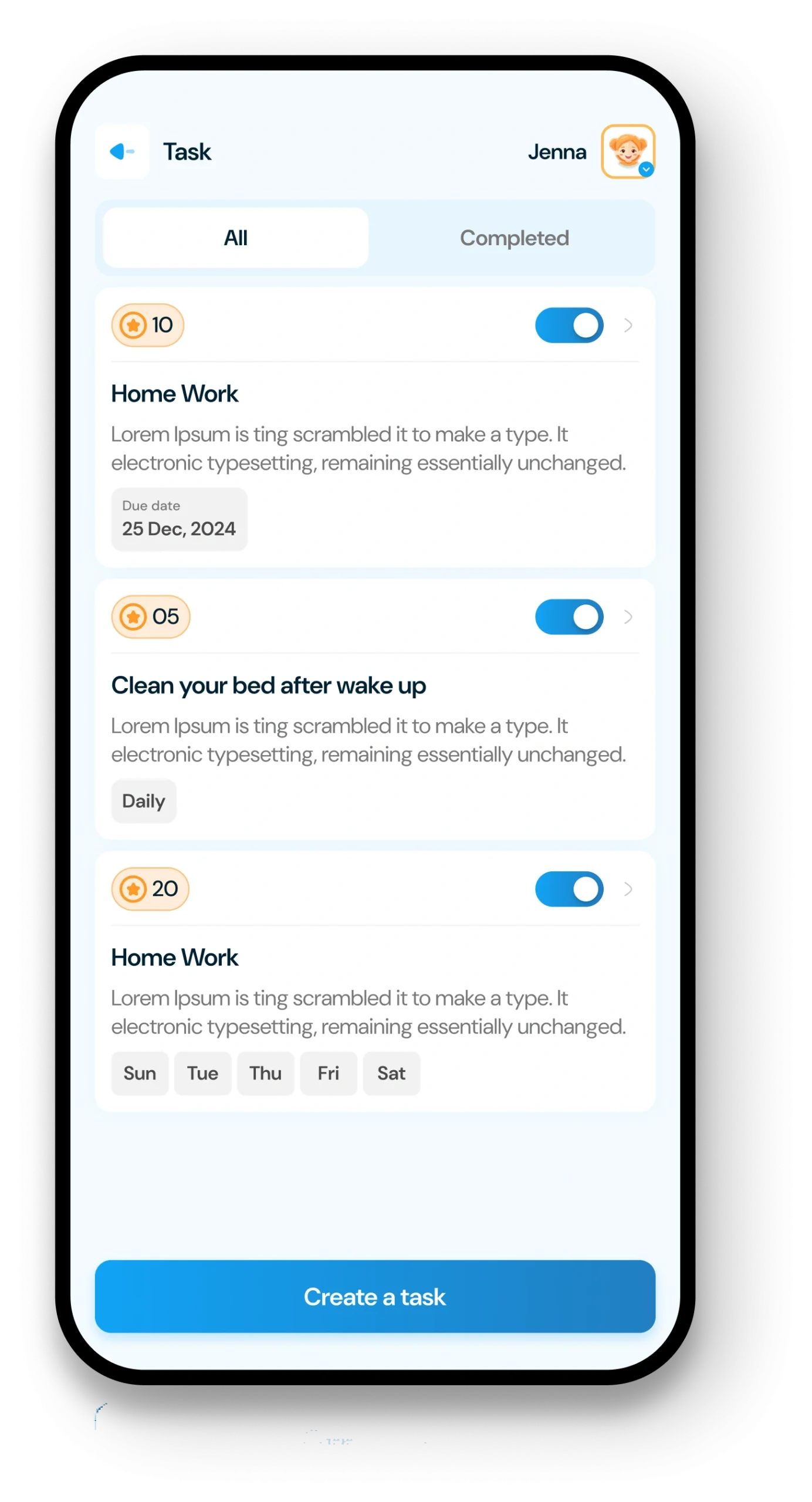
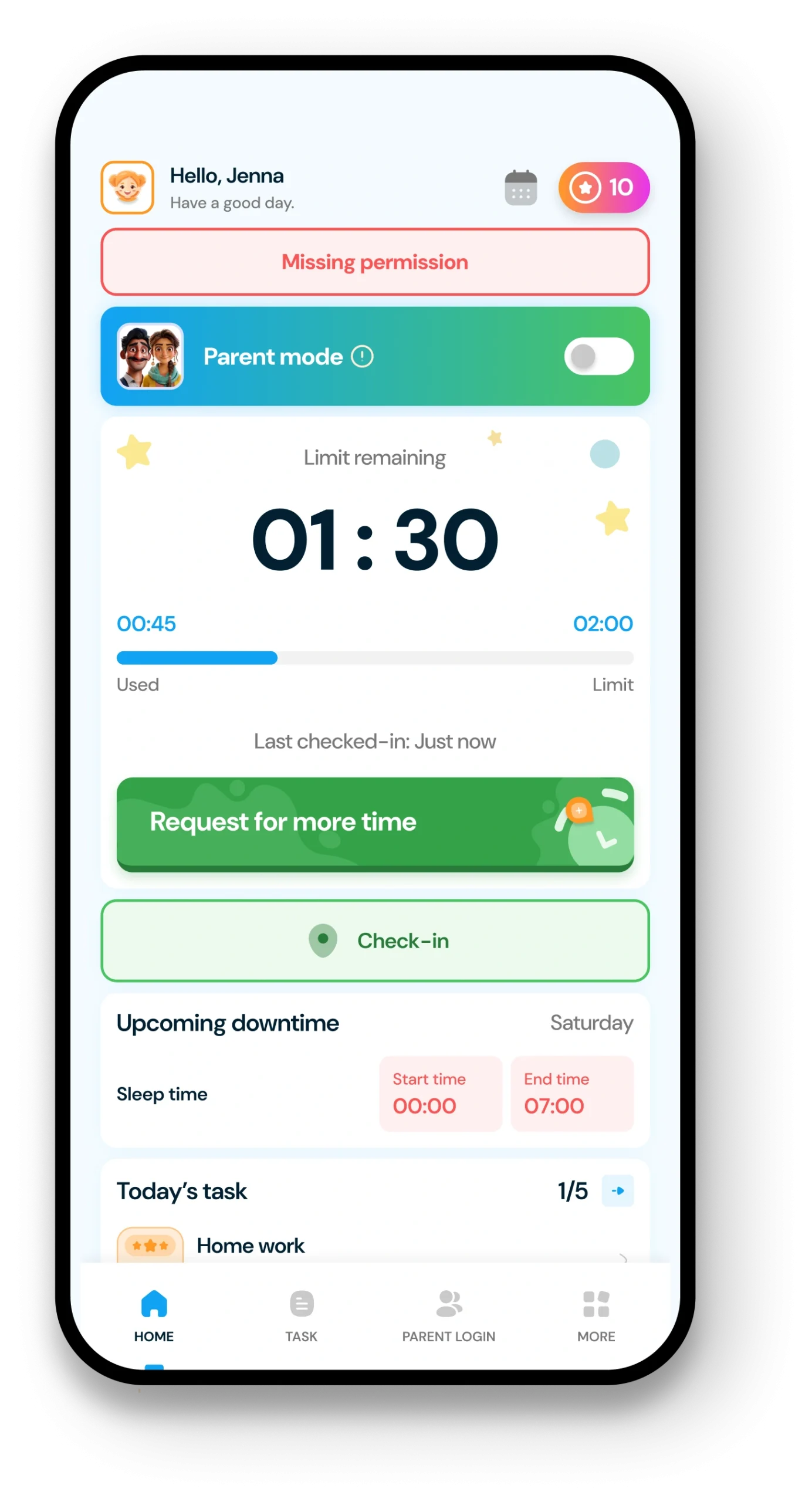
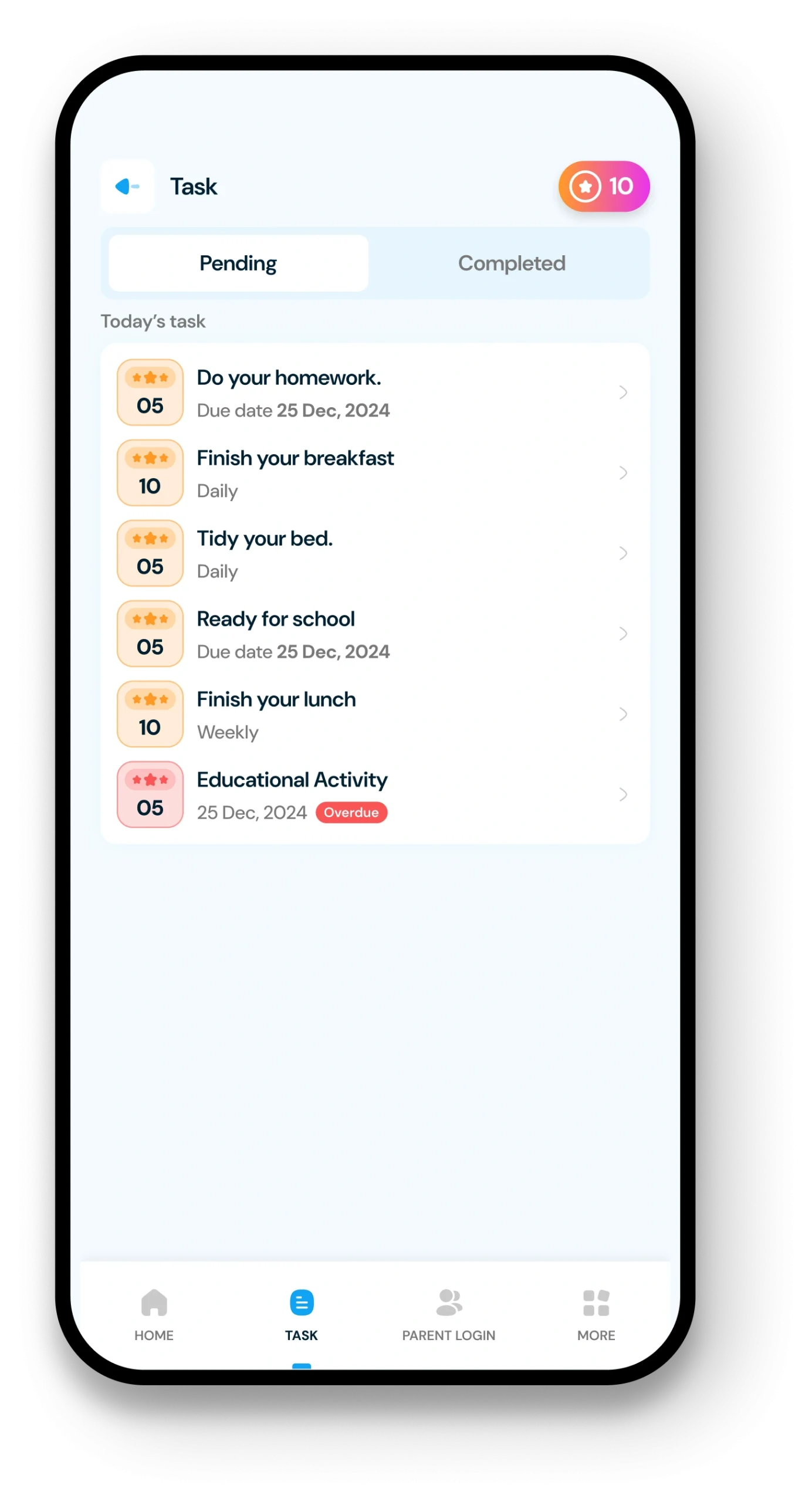
On the child dashboard, kids will see their assigned tasks clearly.
Kids can open the Task tab to view new or pending tasks.
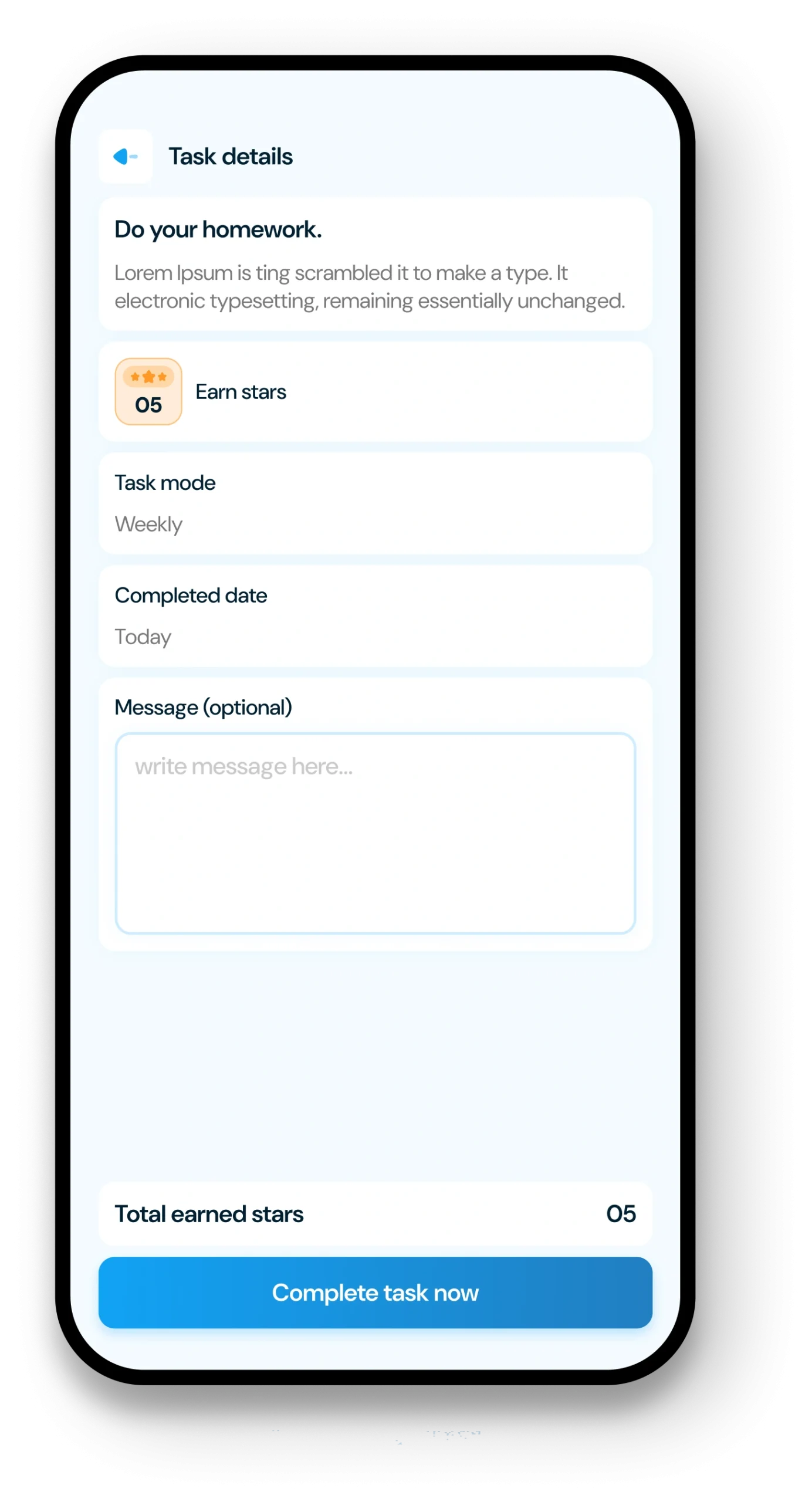
After completing a task, they simply mark it as done.
Parents get a notification to review and approve.
Once approved, kids earn points and can exchange them for extra app time.
More Parental Control Features
Real time Alerts
Receive instant alerts for harmful content detection, location activity, and child safety events.
View AlertsLocation Tracker

Real-time GPS tracking to know where your child is at all times with geofencing alerts.
Enable Location Tracker

Camera Shield
Control camera access and monitor photo activities to ensure your child's privacy and safety.
Enable Camera Shield

Screen Scanner
Capture screenshots of your child's device activity to review what they're viewing.
Enable Screen Scanner

WhatsApp Shield
Monitor WhatsApp messages and protect your child from inappropriate conversations and strangers.
Enable WhatsApp Tracker

YouTube Control
Monitor watch history, block inappropriate channels, and set viewing limits on YouTube.
Try YouTube Control

Content Filter
Block harmful websites and inappropriate content across all apps and browsers.
Enable Content Filter

Screen Time Limit
Set daily usage limits and schedule screen-free times for healthier device habits.
Set Screen Time
App Blocking
Block or restrict access to specific apps and games based on age-appropriateness.
Block Harmful Apps

Instant Lock Down
Remotely lock your child's device instantly when needed for immediate control.
Enable Instant Lock Down

Web History & Blocking
Track browsing history and block dangerous or inappropriate websites in real-time.
View Web History

Insights & Statistics
View detailed analytics and reports on your child's digital behavior and app usage patterns.
View Usage & Monitor

Task & Rewards
Create tasks and chores with reward systems to encourage positive behavior and responsibility.
Create TaskTrusted by Parents Worldwide
Kim Parker
This app helps me track my kid’s location with geofencing and location tracking. I can monitor web history and block unsafe sites—definitely a must-have for parents!
Rik Matthews
KidsNanny helps monitor screen time, block apps, track web activity, and follow location with geofencing. It's user-friendly, though charts need slight improvement.
Ashley Brown
Our family finds KidsNanny an incredible asset. Its powerful features and intuitive interface make managing screen time easy. The check-in feature gives us peace of mind by tracking our child’s movements.
Michael Johnson
KidsNanny features an intuitive and user-friendly interface, making it easy for parents to navigate and access essential features. With simple setup and configuration, you can start monitoring your child's digital activities in minutes.
David Singh
This app is incredibly helpful in keeping track of my kid's whereabouts, thanks to features like geofencing and location tracking. Additionally, I can easily monitor their web history which has been super beneficial. Definitely a must-have for any parent.!!
Maria Hernández
The screen time management feature helps me set healthy limits for my child's device use. The app's check-in and live location features provide a safe environment. A must-download for every concerned parent.
Emily Smith
I like to have the opportunity to see anything happening on my kid's phone - when the phone was used, sites visited, web searches, videos watched! Really amazing!
Hiroshi Tanaka
The best parental control apps, which allow for a good level of control and flexibility,can help you monitor your children's activity across social media. And still giving your family the freedom to explore the digital world, give the benefits of added safety nets.
Jean Dupont
Excellent app to monitor Kids mobile usage. Have control on screen time usage and their effective usage of device for their development.. Caring parents should definitely try it.
Sarah Thompson
Thank you for this amazing product. It is very crucial for the security and privacy of us as children and also for parents. It has enhanced our child's protection by productive tracking system. The overall experience is great to have.
Kim Parker
This app helps me track my kid’s location with geofencing and location tracking. I can monitor web history and block unsafe sites—definitely a must-have for parents!
Rik Matthews
KidsNanny helps monitor screen time, block apps, track web activity, and follow location with geofencing. It's user-friendly, though charts need slight improvement.
Ashley Brown
Our family finds KidsNanny an incredible asset. Its powerful features and intuitive interface make managing screen time easy. The check-in feature gives us peace of mind by tracking our child’s movements.
Michael Johnson
KidsNanny features an intuitive and user-friendly interface, making it easy for parents to navigate and access essential features. With simple setup and configuration, you can start monitoring your child's digital activities in minutes.
David Singh
This app is incredibly helpful in keeping track of my kid's whereabouts, thanks to features like geofencing and location tracking. Additionally, I can easily monitor their web history which has been super beneficial. Definitely a must-have for any parent.!!
Maria Hernández
The screen time management feature helps me set healthy limits for my child's device use. The app's check-in and live location features provide a safe environment. A must-download for every concerned parent.
Emily Smith
I like to have the opportunity to see anything happening on my kid's phone - when the phone was used, sites visited, web searches, videos watched! Really amazing!
Hiroshi Tanaka
The best parental control apps, which allow for a good level of control and flexibility,can help you monitor your children's activity across social media. And still giving your family the freedom to explore the digital world, give the benefits of added safety nets.
Jean Dupont
Excellent app to monitor Kids mobile usage. Have control on screen time usage and their effective usage of device for their development.. Caring parents should definitely try it.
Sarah Thompson
Thank you for this amazing product. It is very crucial for the security and privacy of us as children and also for parents. It has enhanced our child's protection by productive tracking system. The overall experience is great to have.
Task & Rewards FAQs
What is the Task / Time Rewards feature?
The Time Rewards feature lets children earn extra screen time by completing tasks set by their parents—helping balance device use with productivity.
How can parents create a task?
Parents can create and assign tasks by
- Logging into the parent profile.
- Going to the Task section and tapping.
- Click into “Create a Task”.
- They can set the task title, description, and either choose how often it repeats (daily or weekly) or select a due date.
- They can also assign reward points.
- Tap “Save”, and the task will appear in the task list.
How does a child submit a task?
- Opan KidsNany on child device.
- Click in to Task tab on the home screen.
- Selects a task from the Active Task List.
- Writes a short message about the task, and taps “Submit”.
How does a parent approve or reject a task?
Once the child submits the task, the parent will get a pop-up on the parent profile’s home screen asking them to either accept or reject the task.
How can children use their rewarded points/time?
When you reach your screen time limit:
- Tap the “Use reward points” button.
- Tap “+” or pick how many extra minutes you want.
- Tap “Redeem now”.
A message will pop up to say you earned extra time — press OKAY, and you can use any app during that time.